
Archives

Lonsdor K518 MQB49 5C 5D Data Reading Failed Error 25 Solution

Problem:

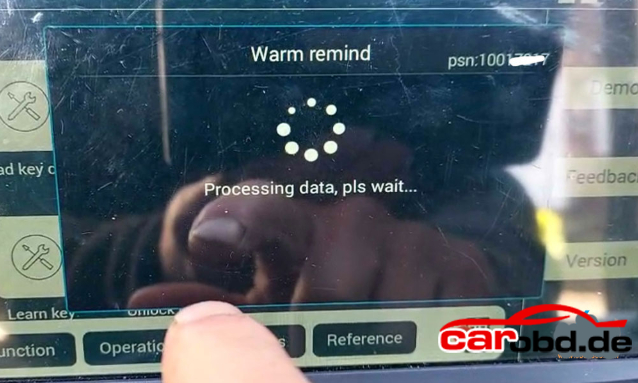
Trying to make a key for a 2019 VW Polo, Normal key not proximity. 5C chip. Tried using both adapters that are in the shape of the key. Lonsdor K518 failed to read original key data with MQB49 5C adapter

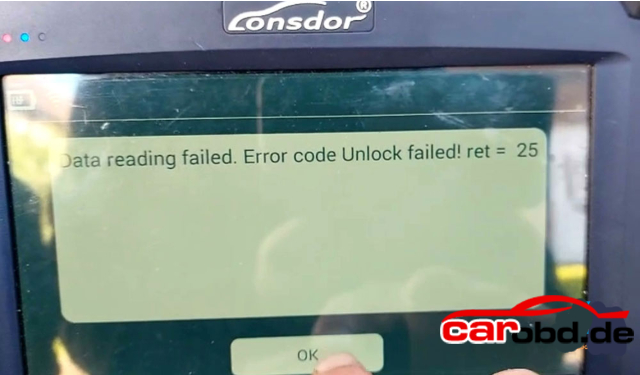
It reported an error” Data reading failed. Error code Unlock failed ret=25″ Any solution ?


Solution:

Check the connection diagram carefully. You need to solder one wire from the key circuit board to the 5C interface board, as shown in the diagram. They try again, and it should work.

Not for all key types. For this type of key, solder 1 wire to the board.
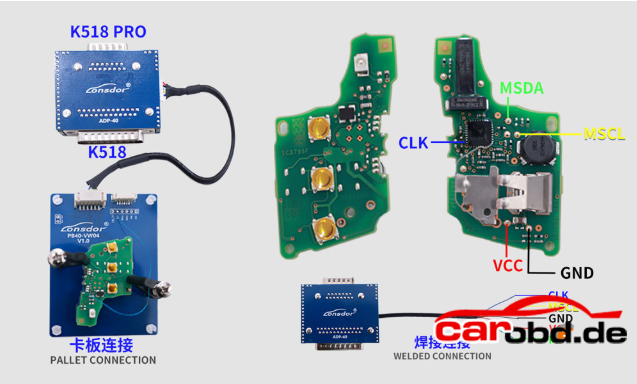
If reading the original key data for BMW BDC2 or BDC3 fails(error code 25), check if need to solder 1 wire to the board as well.

For more technical support,please contact

Jenny

Whatsapp: +86 19947637411
Email: Sales@Carobd.de
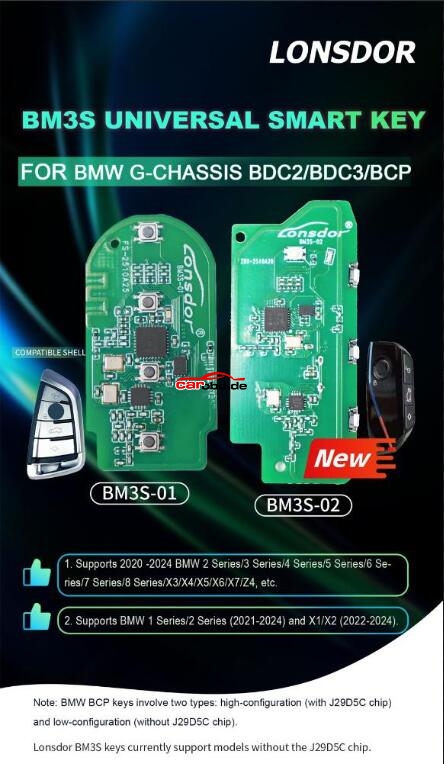
Lonsdor BMW G series BDC2/BDC3 Solution is Coming

Lonsdor BMW G series BDC2/BDC3 Solution is coming
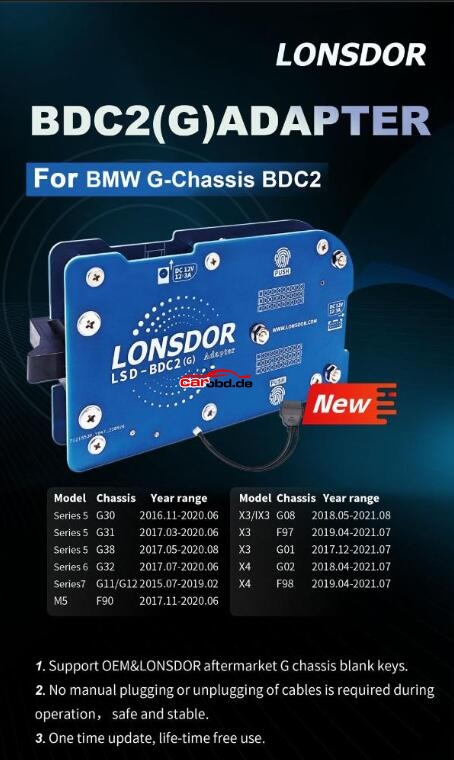
Londsor released BMW G chassis BDC02/BDC03 add key function.
Support OEM & LONSDOR aftermarket G chassis blank keys.
Requires G function license activation (lifetime license).
BDC2 adapter
https://www.carobd.de/wholesale/lonsdor-bdc2-adapter.html
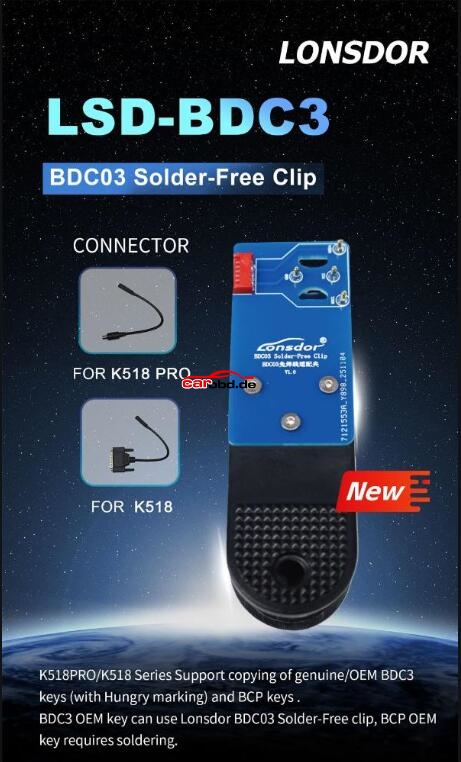
BDC3 adapter
https://www.carobd.de/wholesale/lonsdor-bdc3-solder-free-clip.html
BDC2 Vehicle List
Model Chassis Year range
Series 5 G30 2016.11-2020.06
Series 5 G31 2017.03-2020.06
Series 5 G38 2017.05-2020.08
Series 6 G32 2017.07-2020.06
Series7 G11/G12 2015.07-2019.02
M5 F90 2017.11-2020.06
X3/IX3 G08 2018.05-2021.08
X3 F97 2019.04-2021.07
X3 G01 2017.12-2021.07
X4 G02 2018.04-2021.07
X4 F98 2019.04-2021.07
K518 PRO / K518 Series Support copying of genuine/OEM BDC3 keys (with Hungry marking) and BCP keys.
BDC3 OEM key can use Lonsdor BDC03 Solder-Free clip, BCP OEM key requires soldering.
G license activation

https://www.carobd.de/wholesale/lonsdor-bmw-g-series-bdc2-bdc3-bcp-functio-activation.html

How to Add Key with Lonsdor K518ISE Key Programmer ?

How to Add Key with Lonsdor K518ISE Key Programmer ?

How-to-Add-Key-with-Lonsdor-K518ISE-Key-Programmer-1-678x381

K518ISE key programmer is the latest version of Lonsdor, with wider vehicle coverage in key programming, it is customized as the first masterpiece to the overseas market from Lonsdor.

Today , we’d like to introduce how to add key with this key programmer
Select “Add smart key”
Make sure the network connection
Turn on the ignition by the key emulator we generated before
Turn off the ignition and turn on the emergency light
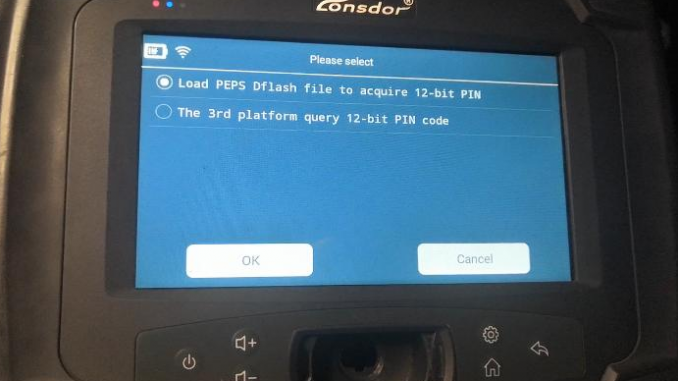
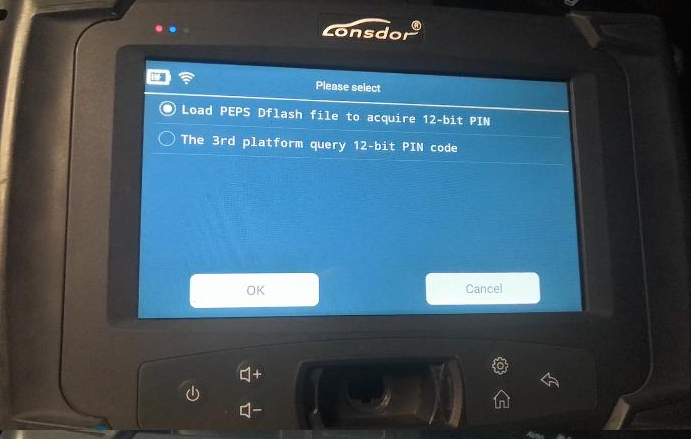
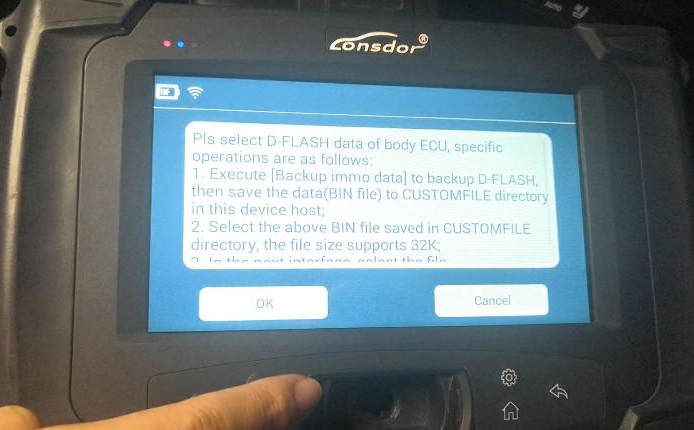
Select “Load PEPS Dflash file to acquire 12-bit PIN”, and load the immo data file

How-to-Add-Key-with-Lonsdor-K518ISE-Key-Programmer-1

How-to-Add-Key-with-Lonsdor-K518ISE-Key-Programmer-2
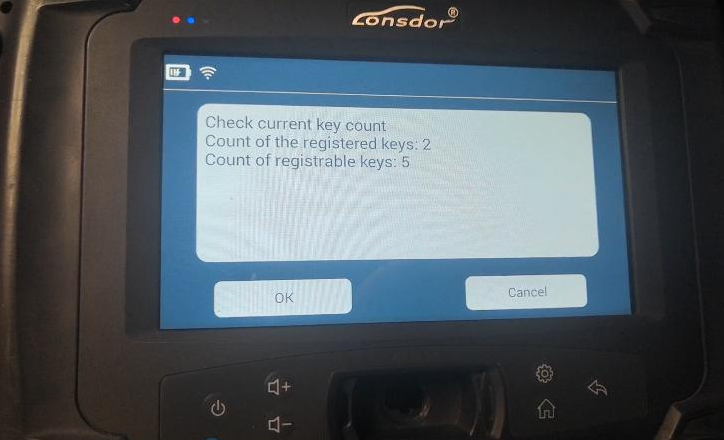
Key information

How-to-Add-Key-with-Lonsdor-K518ISE-Key-Programmer-3

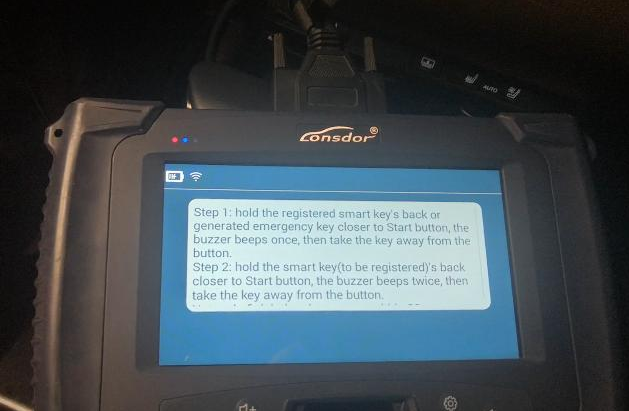
Follow the instructions (This step is important!)

How-to-Add-Key-with-Lonsdor-K518ISE-Key-Programmer-4

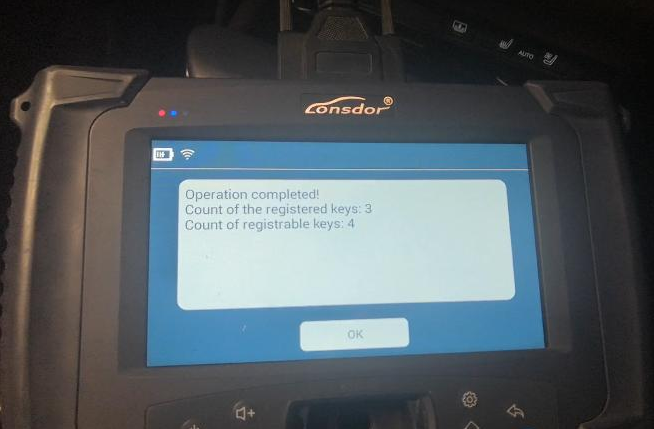
Completed!

How-to-Add-Key-with-Lonsdor-K518ISE-Key-Programmer-5

Turn on the ignition
Follow the instruction to complete the process

How-to-Add-Key-with-Lonsdor-K518ISE-Key-Programmer-6

4. Delete Key
Select “Delete smart key”
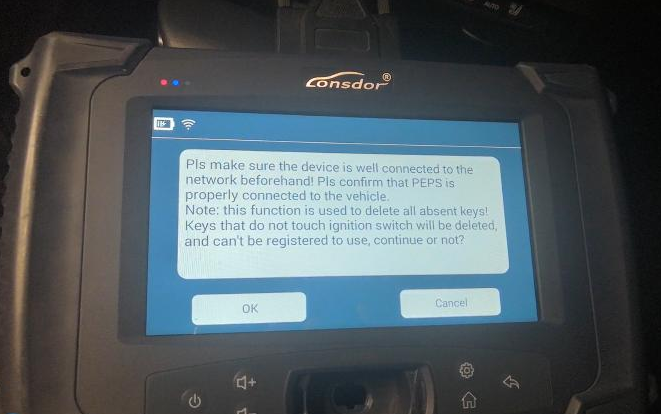
Check some notes

How-to-Add-Key-with-Lonsdor-K518ISE-Key-Programmer-7

Turn on the ignition
Turn off the ignition and turn on the emergency light
Load the immo data file as before
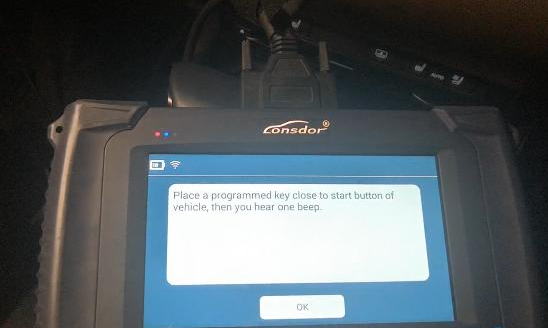
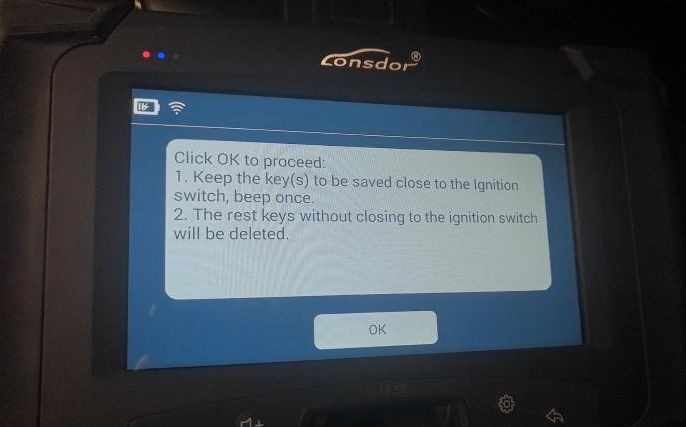
Put the keys to be saved as the instruction

How-to-Add-Key-with-Lonsdor-K518ISE-Key-Programmer-8

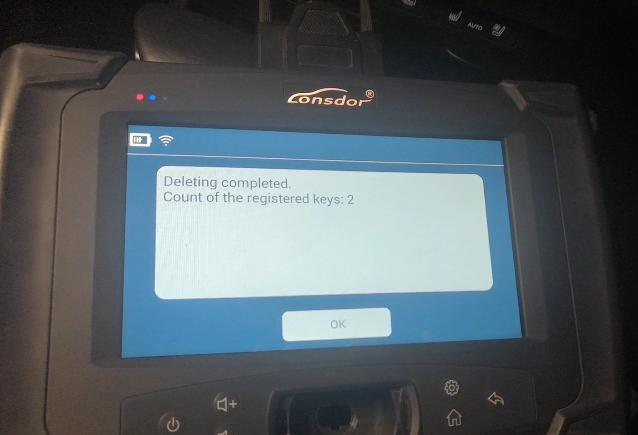
Two keys left

How-to-Add-Key-with-Lonsdor-K518ISE-Key-Programmer-9