100% solution for GENIUS Ktouch ECU programmer fetal error in race 2000 loc

GENIUS Ktouch ECU programmer Runsoftware error “fetal error in race 2000 loc” recently get a part of users confused. Here I share the 100% working solution aim to help more users.

new-genius-flash-point-obdii-tuning-tool-blog-1

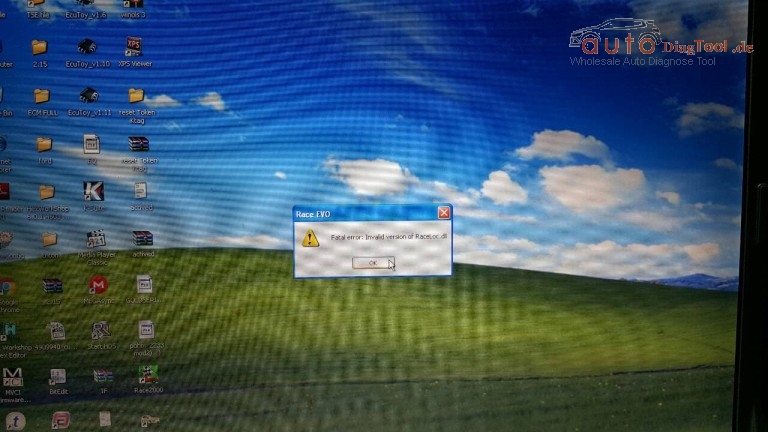
Issue goes like this: Device work ok. Read file ok. But fail to export file to computer and fail to edit and tuning. Software not working, dsmanager not working, Runsoftware windows error “fetal error in race 2000 loc”, as you can see below.

new-genius-flash-point-obdii-tuning-tool-blog-2

Follow the solution below, you will solve the problem:

After setup finish, you have to manually replace raceloc.dll C:\Users\Your PC Name\AppData\Local\DimWare\RaceEVO\7.0

Fatal Error with be solved.

Instead of installing old version of race evo software, I have installed the latest.

Latest race evo Software + k-touch with instructions

Now there are more realistic results about k touch.
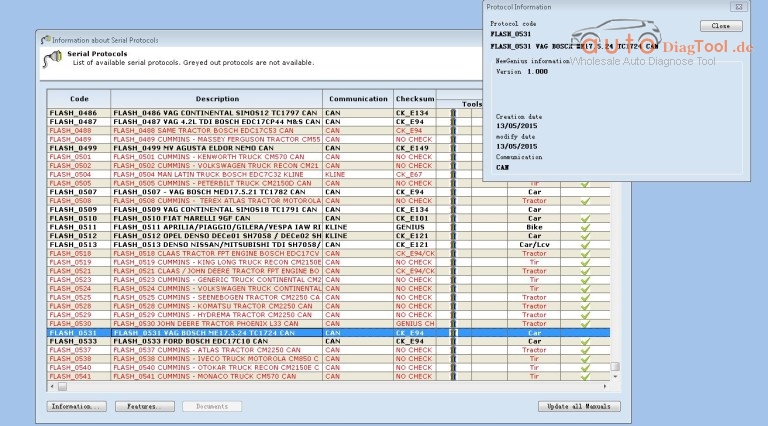
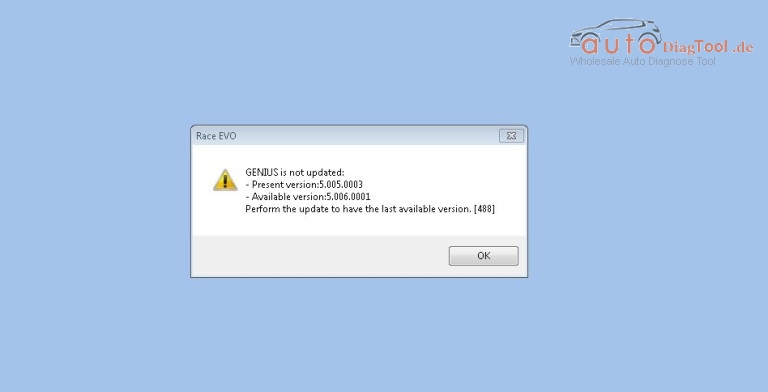
As you can see below, the device firmware is 5.005 and the available protocols now display correctly on the k-touch software.

new-genius-flash-point-obdii-tuning-tool-blog-3

new-genius-flash-point-obdii-tuning-tool-blog-4

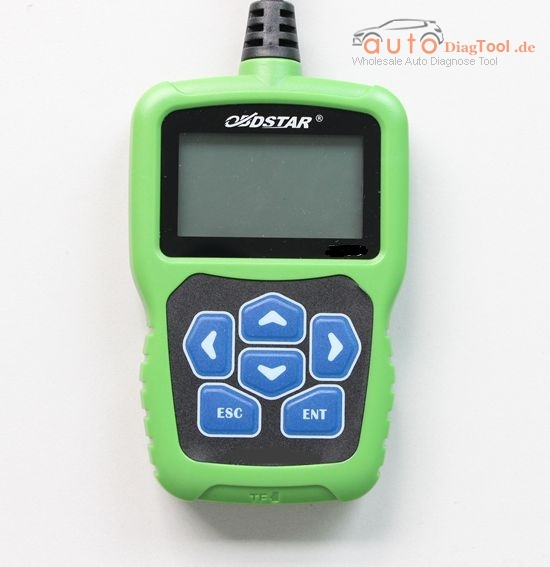
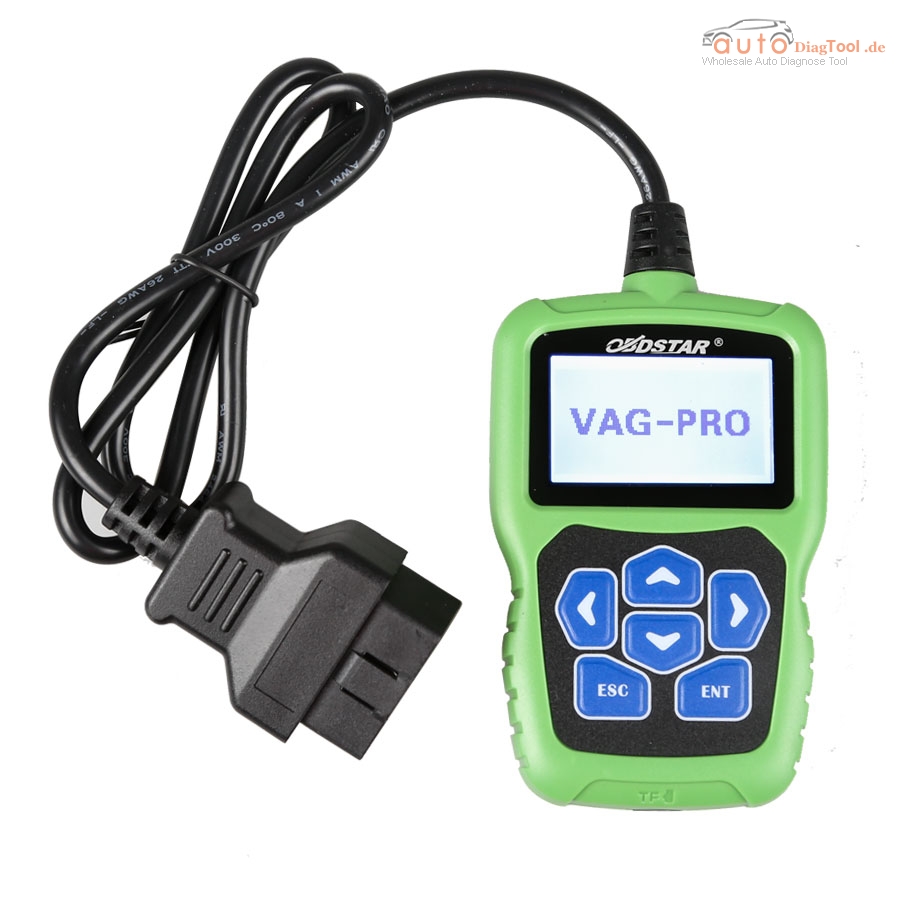
Original OBDSTAR VAG-PRO Key Programmer for VW Group vehicles

obdstar-vag-pro-blog-1

Brand-new OBDSTAR original tool for VW Group vehicles key programming has been released. OBDSTAR VAG-PRO is professional hand-held car key programmer for VW, AUDI, SKODA, SEAT vehicles, no need pin code. OBDSTAR VAG-PRO Key Programmer for VW Group vehicles almost shares the same function with OBDSTRA F100 for Ford/Mazda and OBDSTAR F108 for Peugeot /Citroen.

obdstar-vag-pro-blog-2

OBDSTAR VAG-PRO main functions:

Basic diagnosis for all VW Group car models.
Car key programming, immobilizer programming
Mileage adjustment
Read Security code
Maintenance Reset ;
EPB(Electronic Park Brake);
TPS(Throttle Position Matching);
Oil / Service light reset
Storage Battery replacing
Airbag reset
Steering Angle learning;
OBDSTAR VAG-PRO hardware configuration:

The main unit adopts ARM high-speed chip, the speed is faster;
Support multi-language condition, it can be used in different countries.
Integrated structure design, anti-throw, anti-shake, durable and long lasting;
Industrialization design, it can work stably under the bad environment, such as hot and cold temperature etc.
Large capacity TF card, on-line update;
Offer 1 year free update for the opened software.
OBDSTAR VAG-PRO specific Features:

Support basic diagnosis for all series car models;
Support mileage adjustment for Audi A3, A4 (RB4/RB5), A4L, A5, A6, A6L, A8L, Q5, Q7, S5, R8, TT; VW Bora, Beetle, Caddy, CC, EOS, Lavida, Magotan, Golf, GTI, Jetta, Passat, Phaeton, POLO, Scirocco, Sharan, T5, Tiguan, Touareg, Touran, Tansporter; Fabia, Octavia, Superb, Altea、Ibiza、Leon;
Support read security code for the 3.5 generation immobilizer Bora, Golf, Passat, Lingyu, Jetta, Polo, Sharan; Lavida, Sagitar, Caddy, Touran, Octavia; Audi 03-05 A4(RB4), 06-07 A4(RB8);
One click maintenance reset, no need any channel number, support small and big maintenance auto reset for the latest models till 2014 A8L, A7, A6L, A5, A4L, A3, A1, Q5, Q7,Q3, TT, Magotan, CC, Lavida, Satigar, Passat, Superb, Fabia, Tiguan, Tiguan, Scirocco, EOS, Touareg, Gran Lavida etc.
Support replaces brake pads for the cars with EPB, support brake pad thickness input directly, intelligent operation, and no need channel number;
Support throttle position matching, auto-identification vehicles, intelligent operation;
Before the 4th generation immobilizer, support intelligently program keys and remote, no need channel number;
Replace storage battery for the vehicles with automatic start-stop device;
Repair airbags collision data for old VW5, VW51 etc.
Steering angle learning for G85;
VW, AUDI the 4/5th generation adapter is being developed, support optional.
What models can OBDSTAR VAG-PRO do?

OBDSTAR VAG-PRO EPB (PBM)

Audi (EPB)

A8

A8 (D3)

A8 (D4)

Other model

Seat (EPB)

Skoda (EPB)

VW (EPB)

OBDSTAR VAG-PRO immobilizer:

—AUDI V30.13

—SEAT V30.13

—SKODA V30.13

—VW V30.33

Xhorse VVDI BGA MB TOOL user feedback collection

xhorse-vvdi-benz-key-programmer-bga-function-blog-1

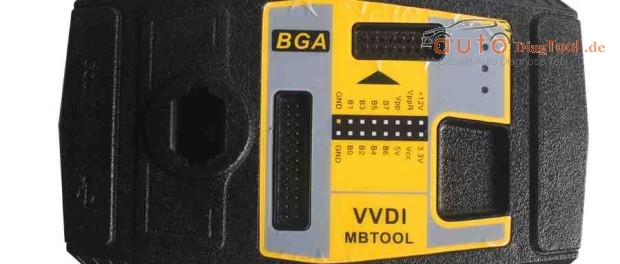
Xhorse VVDI MB BGA TOOL is welcomed as a professional key programmer for all Benz keys. Considering you may be interested in this tool’s real performance, here is Xhorse VVDI BGA MB tool user feedback collection for you reference.

VVDI BGA MB tool do all key lost, add key, renew ECU
VVDI MB TOOL read and calculate BGA password, make Benz keys
VVDI MB TOOL renew EIS/ESL
About VVDI BGA MB tool extra K-line cable

Other feedbacks

VVDI BGA MB tool do all key lost, add key, renew ECU
—I got my tool on Monday. So far I tried all key lost for:

3x W212 old —— worked

2x W166 ——- worked

3x W212 new ——- worked

2x W246 ——– worked

From BGA key

W212 old ——- worked

W212 new —— worked

Copy EIS:

W164 new —– worked

W164 old —– worked

W212 new —– worked

W204, W207 —— worked

— I try today to renew ECU ME9.7 with VVDI BGA MB tool…..successful. With 7G boxes works on hurray.

— Add key (20 minutes for one):

E300L…work fine

R500 4 matic…work fine

CLS260…work fine

S320…work fine

E260…work fine

W204 – 2011 – NEW KEY…work fine

— I tested it ok on both car type W203 (year 2003) and W639 (year 2006)

— I used my tool for reading BGA and be keys. It’s very good to renew 7G plates and ECU. And I also tested renew sim4se It is a W203 engine ECU with no screws… one ECU was working renew good other sim4se was reading ok.

VVDI BGA MB tool read and calculate BGA password, make Benz keys
—VVDI MB TOOL is the most fast tool for pass calculation for EZS FSB3 (w166 etc.)

— VVDI MB TOOL support read w164 via OBD without gateway, but you need special adapter to replace gateway as inter unit

— W203: EIS A203.545.05.08 – MCU 1J35D – read PSW – OK

W 220 EIS 215 545 02 08 read PSW via IR – OK. (This but not means all W215 can support. In fact only support parts of this type)

— I’ve been able to read Version 40, 51 and 57 until now with this device.

— Just extracted pass by IR on a W203 within 2 minutes. Wonderful!

— VVDI MB tool password calculation test:

Calculate 221EIS password… work fine

Calculate 212 545 03 08 password… work fine

—Xhorse engineers developed their own algorithm also they have special dedicated server for BGA calculation and FSB3 pass calculation. With VVDI MB TOOL only need at LEAST two calculations for BGA pass and for FSB3 is 100% ok! Other tools need more than 2 calculations. And VVDI server is the fastest at the moment much faster than others.

— I succeeded in making a spare key on a W211 yesterday. But I extracted the pass from the original v51 key and after that the remote function of the original key stopped working (it wasn’t emitting at all and the LED didn’t flash) and it wasn’t starting the car too. I had to renew and program it again to make it work. Finally I got the answer: sometime this happen when NEC is not right soldered back to PCB, or sometime this happen when NEC is not right soldered back to PCB.

— It works well, as Xhorse still have some little problem like dealer pass or erase password calculation but it only few little bugs that I hope they will fix soon.

VVDI BGA MB tool renew EIS/ESL

— I check W204 ESL and it damage, so I bought a second-hand ESL to work with my VVDI MB TOOL. I took steps as follows and it worked.

1 get key password

2 save EIS data with Pass

3 renew EIS

4 write saved EIS data

5 renew ELV

6 in EIS personalize ELV

7 Insert Key all should work

Also you can refer to these, I found from forum.

ESL: Clear TP, Renew ESL (need erase password)

EIS: Renew EIS (need password & erase password)

Write EIS data back, then Personalize W204ESL

(0ne token for read key code)

— Guys I picked it up from forum, share this solution with you all.

I tried to renew w210 EIS and got the key password and erase password, but once I click on renew EIS it says failed how can I renew EIS for Motorola w210?

You should ensure your password is correct then try again. Some types of old K line EIS cannot support renew.

About VVDI BGA MB tool extra K-line cable
— The extra K-line cable is for use for example with some type of older EZS/EIS, which have his diag PIN in OBD plug in different place then standard norm K-line…for example W203, W639….this models you can read through OBD cable only when you use this BLUE extra cable and connect it to other PIN, in case W203 and W639 have EZS/EIS on PIN nr.1 in car OBD plug…or for use on the table on bench then you can read EZS/EIS through cable too….not only by IR.

Other feedbacks
— A friend of mine received his VVDI MB tool , no manual no instruction , no drivers only machine…he managed to install it and in 7 minutes he made BGA key , he was shocked and I am also! For VVDI BGA my friend say is very good with BGA with older models he is not so sure.

— Xhorse support is 10000% ok and very helpful and is quick instantly. Of course need to synchronize time between your country and china and they have many flash and dumps for backup.

(Solved) SDConnect C4 WIFI has no connection in 05.2016 Xentry

sd-connect-compact-4for-benz-1-1-blog-1

When I run my SDConnect C4 with cable in Xentry 05.2016 everything works well. I made configuration the WIFI of PC with the normal procedure with 26xa ec. but when i tried to connect my Wifi of pc with the C4 I got error that there is no connection. i tried different times but nothing happened. The sdconnect is on standby but my PC doesn’t see the Road24h. After a little bit of time in my network connection i can see the Road24h but when I try to connect it gives me error and than the Road24h is not anymore in my network connections.

Finally, I solved by following this step-by-step instruction:

Try this

It worked for me

To save an ad-hoc network and its network key on the guest computer (running Windows 7)

Note down the SSID, security type, encryption type and the key of the ad-hoc network.

Disconnect your connection to any wireless network and switch off/disable your wireless device. Turn on/enable your wireless device but don’t connect to any network. (Thanks GK.)

Click on the network icon in the taskbar.

Click Open Network and Sharing Center > Manage Wireless Networks > Add.

Click “Manually create a network profile”. (This may look silly but we really are going to create an infrastructure network now.)

Enter the network name (SSID), security type, encryption type (if any) and the key that you noted in step 1.

Uncheck both checkboxes (“Start this connection automatically” and “Connect even if the network is not broadcasting”.) [Note that you cannot have the connection start automatically. If you try to have it checked, step 10 will fail. A different way to start it automatically during system boot is described below.]

Click Next > Close. Your connection must appear in the list with the icon suggesting infrastructure (two big screens connected to a tube). Don’t worry about it.

Click Start, type in “cmd” in the search box, press Enter.

In the Command Prompt, type in “netsh wlan set profileparameter name=NetworkName ConnectionType=IBSS”, exactly as shown, without quotes, except you must substitute NetworkName with the SSID (network name) of your ad-hoc network.

If everything went well, you’ll see that the icon has now changed to an ad-hoc icon (three small screens connected to each other) in the Manage Wireless Networks window.

Turn on/enable your wireless device, and try connecting to the Ad-hoc network. You will notice that you no longer need to enter the network key.

To automatically connect to a saved ad-hoc network during Windows boot (can be applied to both guest and host computers running Windows 7)

Click Start > point to All Programs > right-click Startup > click Open. (You may choose Open All Users instead if you prefer).

Right-click an empty space and click New > Shortcut.

Type in “netsh wlan connect NetworkName”. Once again, NetworkName must be substituted with the SSID of your ad-hoc network.

Click Next and enter a fancy name such as “Connect to NetworkName” or something like that.

Click Finish and you’re done. This shortcut will run when Windows starts up, giving you a very brief flash of the black command window, followed by your computer connecting to the ad-hoc network if it is available. Tip: You can also pin the shortcut in your taskbar or copy it to the desktop to easily connect to the network any time you want.

Note: You will probably need Administrator access to complete some of the steps above (in both procedures).

PET 7.3 For Porsche Multi-language installation instructions

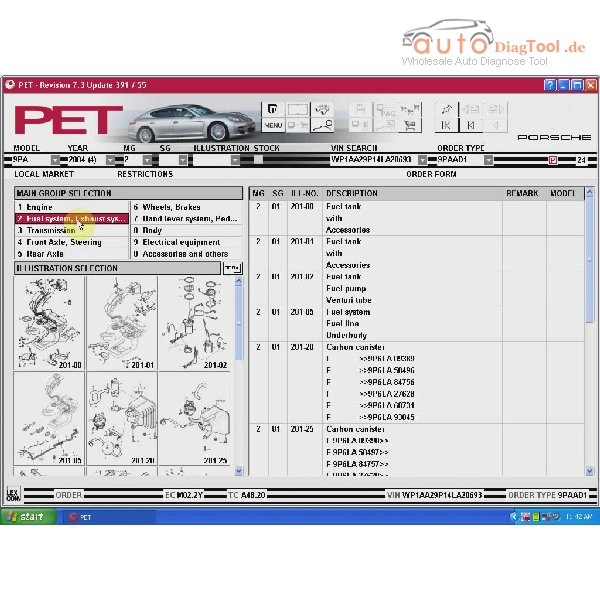
2016.04 Porsche PET 7.3

PET revision 7.3 Spare Parts Catalog V2016 compatible vehicle coverage: Works with Porsche’s vehicle lists to the whole year long till 2016.

pet-73-for-porsche-1

How to install the software?

1. Copy “PET” to C:\
2. Copy the shortcut “C:\pet\PET7” file to desktop.
3. Run hardlock, select “US English”, then click “Next” till you get prompt “…Successfully”.
4. Run “emulator” and select the first option icon and get prompt “…Successfully”.
5. PET program start, it is ready to use.
Note: it is only compatible with XP or win7 32bit
For how to install, please check the text file named “How to” in the folder.

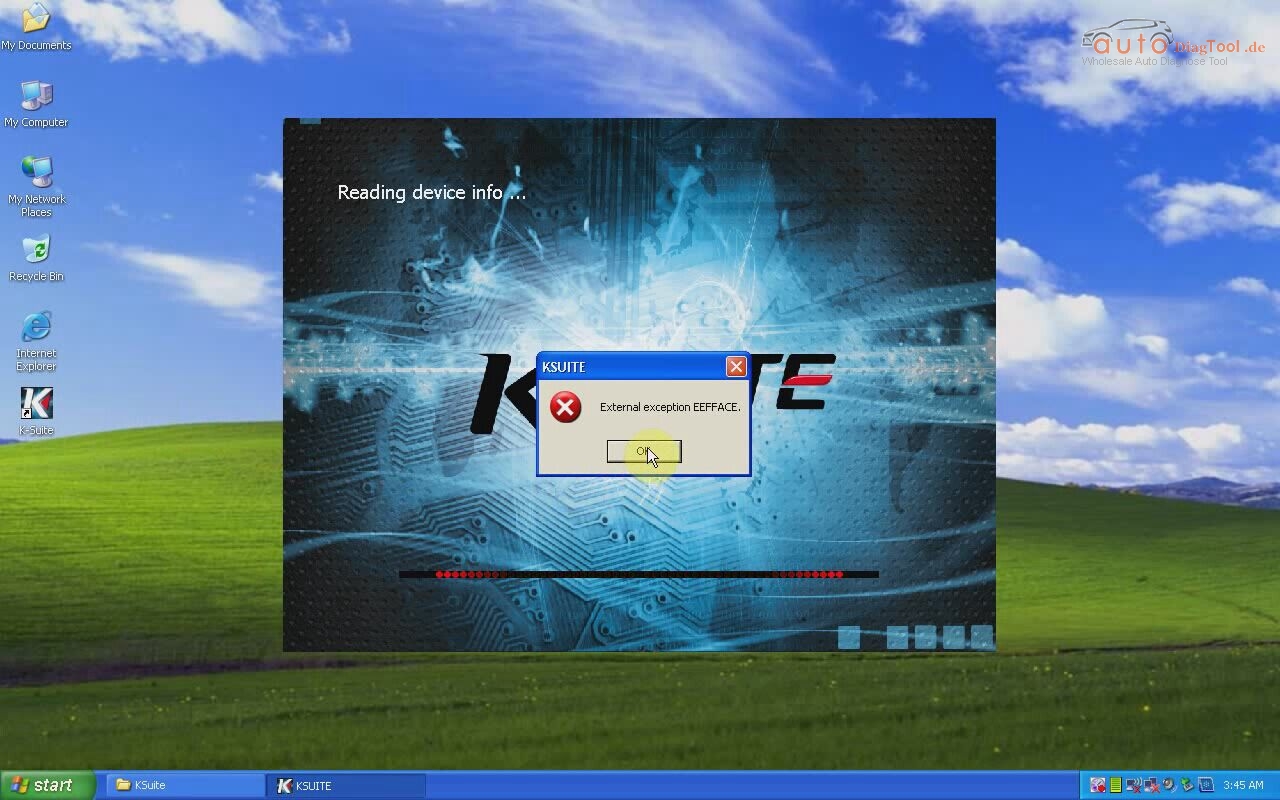
How To Solve The Problems For Kess Comes The Error “EXTERNAL EXCEPION EEFFACE”?

How to Solve Kess V2 comes the error of “EXTERNAL EXCEPION EEFFACE”?

Now many customer asked for help to their Kess V2 comes the problems of “EXTERNAL EXCEPION EEFFACE”,and here is the solution to solve the problems.

kess-v2-blog-1

After install the software,it come the problems,then you need download the 1.93 file.

Here is the download link:https://mega.nz/#!lF4g2LQS

And this is the download key: !O_21c1lcw0-lVqHvYt8Bnjlsn0hOZ8bOx2b92YJrzfM

You can follow the video to operate,it is very easy!

If you have other good way to solve the problems,you can contact us and share with us.


Autodiagtool.de SKP900 Key Programmer Up 7% OFF(till 08/25/2016)

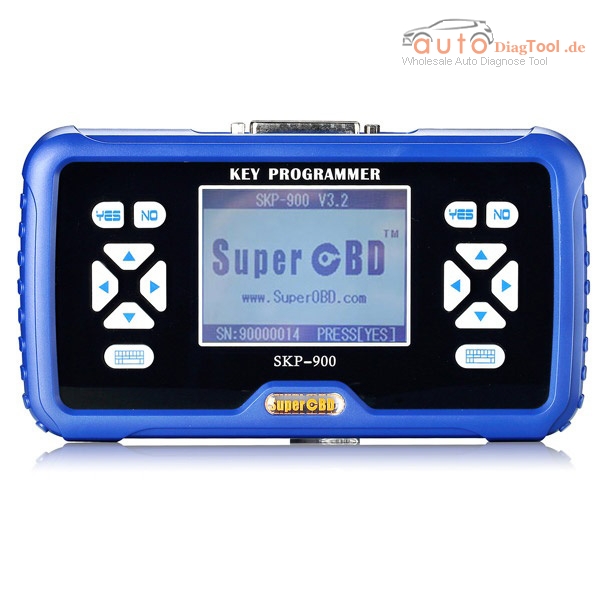
Promotion SuperOBD SKP-900 V4.2 Hand-held OBD2 Auto Key Programmer No Tokens Limitation On Big Sales

superobd-skp-900-ke-programmer-main-blog-1

Sales: 7% OFF
Time: 07/27/2016-08/25/2016

Original Super SKP-900 SKP900 Key Programmer:
1. Hand-held tool,supports almost all cars in the world till year 2016.
2. No need pin code.
3. Provide lifetime free update online.


Higliths to Get SKP-900 Programmer

Version:V4.2
Update Online
Support XP system
Support Toyota G chip
SKP900 is good for American cars after 2006, especially Good for Landrover,not so good for Japanese cars, for Japanese cars, you can choose our Original X-100+ X100 Plus Auto Key Programmer

Kindly Note

1.SKP-9000 no tokens limitation, and updated freely permanent.
(it is with 50 tokens, after you use up, you can go to the SKP-900 official website to get more. It is for free. Just need Registration.)

2.This version superobd skp-900 key programmer only support English, if you want Portuguese version, please check there.

New Arrival~OBDSTAR VAG PRO Auto Key Programmer No Need Pin Code

VAG-PRO is a kind of professional handheld device mainly for VW, AUDI, SKODA, SEAT in programming and setting.

obdstar-vag-pro-1

OBDSTAR VAG Pro Highlights:
1. Support key programming for VW, Audi, Skoda, Seat, NO Pin Code Need
2. Update Online One Year for Free
3. Multi-function hand-held device for VAG vehicles, work via obd2 port directly
I. OBD Diagnostic Function
II. OBDSTAR VAG Pro Special Function;
1. Mileage adjustment;
2. Read Security code;
3. Maintenance Reset ;
4. EPB(Electronic Park Brake);
5. TPS(Throttle Position Matching);
6. Program Keys;
7. Program Remote;
8. Replace Storage Battery;
9. Repair Airbags;
10. Steering Angle Learning;

How to register and activate Launch Easydiag 2.0 Plus

Launch X431 EasyDiag plus 2.0 OBDII code reader scanner for ios Android phone/tablet is a powerful diagnostic scan tool, giving the technician full access to Engine, Transmission, ABS (Brakes), SRS (Seatbelts and Airbag) systems and more.

Launch Easydiag Plus Specifications/Special Features:

1. Full OBDII generic code reader/scanner capability included at no charge
2. Reads and clears codes on all vehicle systems
3. Complete system and subsystem coverage (engine, ABS, SRS, transmission and more) with live date and color graphing
4. Enhanced live date and for all vehicle system
5. Includes Bluetooth OBDII connector-optional extension cable available for easier plugging and unplugging of OBDII connector
6. Intuitive interface and easy to use
7. Customizable software-choose from over 70 Asian, European and North American manufacturer for enhanced capability
8. Single carline software priced individually per vehicle manufacturer
Additional coverage, capabilities and functions with each new software update

Available Car Models for Purchase:(You can download any two of those for free)

USA: BXGM, CHRYSLER, GM, USAFORD

European: AUDI, BENZ, BMW, CITROEN, DACIA, EUROFORD, FIAT, GAZ, GMSA, JAGUAR, LANCIA, LANDROVER, MINI, OPEL, PEUGEOT, PORSCHE, RENAULT, ROMEO, ROVER, SAAB,SEAT, SKODA, SMART, SPRINTER, VAZ, VOLVO, VW, FORD

Aisan: ACURA, DAEWOO, DAIHATSU, HOLDEN, HONDA, HYUNDAI, INFINITI, JPISUZU, KIA, LEXUS, MAHINDRA, MARUTI, MAZDA, MITSUBISHI, NISSAN, PERODUA, PROTON,SSANGYONG, SUBARU, SUZUKI, TATA, TLISUZU, TOYOTA
How to download, register and activate Launch Easydiag 2.0 Plus?

I. Download & install EasyDiag app for Android

The EasyDiag App is free to download in Google Play.
1. Turn on your Android device. Be sure that you have a strong signal that links to the network.
2. Go into Google Play. Google Play can be found in the following URL as well: https://play.google.com/store.

3. Key in easydiag in the search bar and click “search” icon.
4. Click the INSTALL to start installing.
5. When installation is complete, tap the HOME button, an Easy Diag icon will appear on the home screen.

II. Download & install EasyDiag app for iOS
The EasyDiag app is available and free to download in the Apple App Store.
1. Turn on your iOS device and click on the App Store icon.
2. Key in easydiag in the search field to start searching.

3. Once found, click the download icon (Note: The iOS device will ask for your Apple Store password if necessary, input it when prompted and click OK. This will begin your download).
4. When download is complete, tap the HOME button, you will see a EasyDiag icon on the home screen.

III. Register Easydiag 2.0 Plus

Before using, you should have a CC number.if you have already registered CC, input your CC number and password to login.

Tap [Login] in picture software layout, a screen similar screen will appear

2. For new users, tap [Register] to proceed to next step. For existing users, input your Username and Password to login directly.

3. Input the required information, and then tap [Register and Login] (for Android) or [Register] (for iOS), a dialog box will pop up.

Tap Register Connector to continue. Input the Serial Number and Activation Code of the connector, which can be found in Password Envelope. After inputting, tap Confirm.
To register the connector later and exit, tap No Connector.
Alternatively, you can also register your connector by tapping “Activate Device” in “Mine” (for Android) or “Private Information” (for iOS). For details, please refer to Chapter 4.5 “Connector Activation”.
NOTE: When registration is successful, a confirmation letter will be sent to your registered mailbox. In case of forgetting the password, you can retrieve it via mailbox.

IV. Connector Activation

If you did not register the connector for initial use, you can also register it using the following steps:
1. Tap “Mine” (for Android) or “Private Information” (for iOS).
2. Tap Activate Device to enter

3. Input the Serial Number and Activation Code, which can be found in the password envelope in the package.

V.Purchase and Download the Diagnostic Software

Attention: The purchasing agreement for the software is for ONE year subscription.
Before diagnosing a vehicle, you have to purchase the diagnostic software and download it.
Thedownload icon located on the lower right corner of the diagnostic software logo means that the diagnostic software has not been purchased and downloaded.

How to purchase diagnostic software?

Follow the steps described below to proceed:
1) Go into [Settings] to confirm that the current serial number is proper.
(Note: If you have not registered more than one connector, please ignore this step.)
2) Tap the desired vehicle brand logo, you will see the software information interface. Here we take GM as an example.

Tap [Purchase Now] to go into Order Confirmation interface.

To order more, tap [Add to Shopping Cart]. After selected, tap shopping car to enter the Shopping Cart to make an order.
To obtain preferential purchase, you are suggested to place an order for software package. Tap the desired software package to start purchasing.

Note: Alternatively, software package can be purchased directly by tapping “Purchase software package” logo on the Diagnose main interface.

Tap to share your software experience and comment on Facebook or Twitter.
3) Check whether your order information is right or not, and then tap to go into payment interface.

4) Select a payment type. On payment page, double confirm such information as diagnosis software order name, order number, product serial number, total price and order time. (If necessary, take a note of the order number.) Follow the on-screen instructions to complete the payment.

How to download diagnostic software?

Only after payment has been made for diagnostic software or software package can the software or software package be downloaded.
Tap and choose “Diagnose” from the function menu to enter.
Here we take DEMO as an example.
1. Tap DEMO logo, a screen similar to the following will appear

For Android:
Note: If you registered several EasyDiag / EasyDiag Plus connectors, a dialog box prompting you to select Serial No. will pop up on the screen. Tap or to choose the desired connector to download the software.

For iOS:
Note: If you registered several EasyDiag / EasyDiag Plus connectors, tap to choose the desired connector to download the software.
2. Tap [Download Software] (for Andriod) or [Check Download] (for iOS).

3. Click on to start downloading.
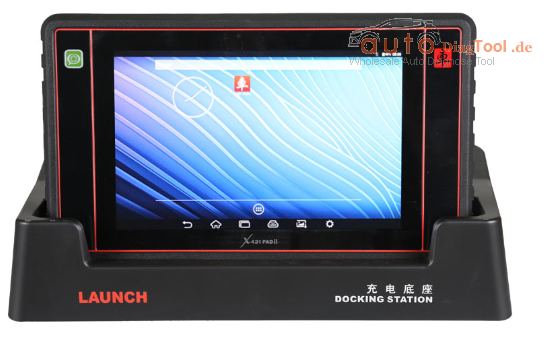
New Arrival Launch X431 PAD II 2 Full System WiFi Diagnostic Tool

Launch X431 PAD II is the new high-end diagnosis solution. Using the open source Android OS for deep car analysis and work with its large number of special functions. X431 PAD 2 covers more than 70 brands, access to all available vehicle systems; coding, programming (key, immobilizer system) and service reset.

launch-x431-pad-2-blog-1

X431 PAD II Features:

Professional and systematic DTC scan
Read & clear DTCs and use the integrated DTC one-click search
Record and playback Live Data
Display various graph streams simultaneously (up to 15 graph streams)
Remote diagnosis via golo
Easy and quick update via Wi-Fi
More powerful hardware configuration
Cortex-A7 4 core processor, 1.2GHZ; 2G memory, solid state memory 32G; 10.1 inch IPS high definition capacitive screen; machine passed the IP65 test
Comprehensive diagnosis for all functions
Full system diagnostic device, supporting: Read data streams, storage, playback, read DTCs, clear DTCs, actuation test, special functions
Large car model diagnosis coverage
DTC intelligent search
With the car model name prefix to quickly search for DTCs on Internet.
Maintenance database
Provide a large amount of vehicle maintenance information
Upgrade center
Support one-click upgrade for firmware and car model software and release updates in real time.

This is Original tool of Launch Pad II.with good quality and power for function,you can have a try.