

1. Which TOPON products are certificated with AutoAuth Gateway?
FCA US has partnered with TOPDON to certify TOPDON manufactured diagnostic tools to secure SGW vehicles’ access.
Requirements:
✓ Ensure TOPDON tools have the latest software (valid software
subscription required)
✓ Tools need to connect to the Internet
✓ Users will enter AutoAuth Credentials when prompted on the tool to
unlock SGW vehicles
✓ As of August 3, 2022, TOPDON has 7 devices equipped with the
AutoAuth gateway. Among them are: Phoenix Lite 2, Plus, Elite, Pro, Smart, Remote, Max.
We will also continue configuring the AutoAuth gateway to Unlock FCA SGW in more releases.
2. How to access the AutoAuth on Topdon Diagnostic Tool?
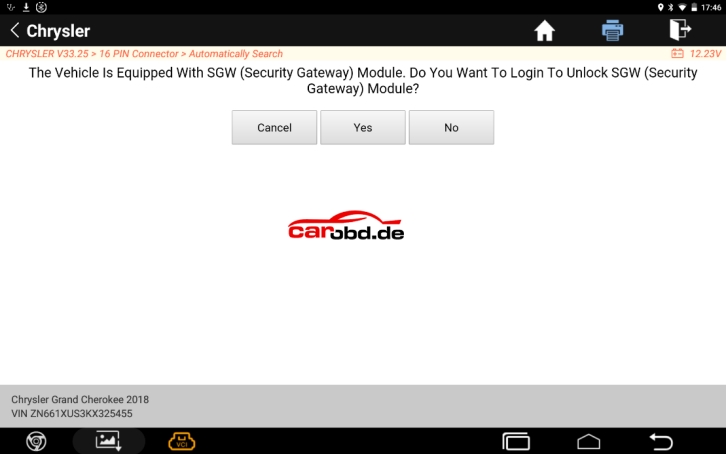
Step 1: When you diagnose FCA models, the following prompt will pop up, please click Yes.
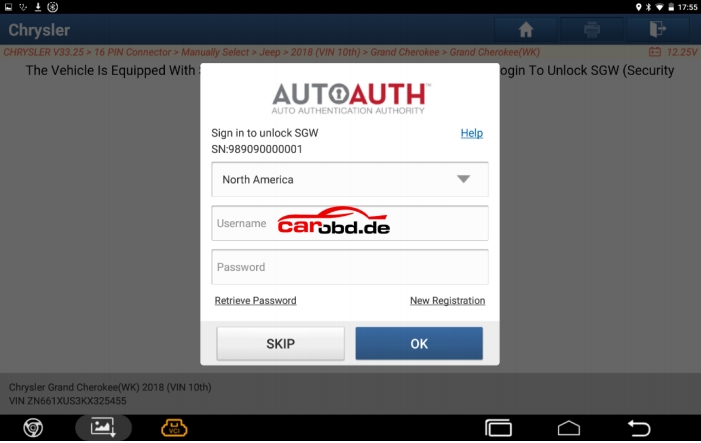
Step 2: Log in to your AutoAuth account to unlock it.
3. How to register AutoAuth acccount?
1) Go to https://webapp.autoauth.com/
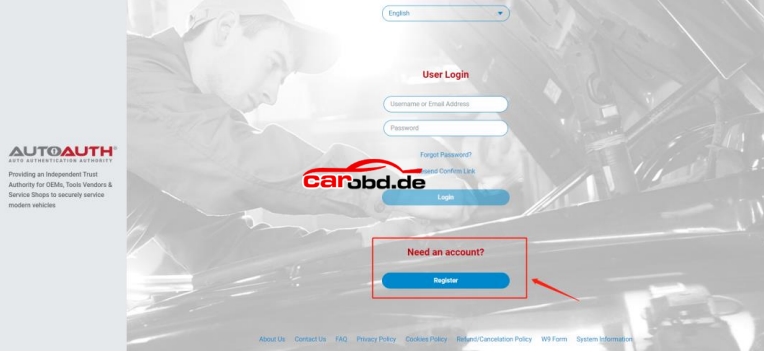
2) Click REGISTER
3) Setup AutoAuth User Account – There is no payment until a user registers a service center (shop or technician).
You will need to create a unique username. The username must be at least 8 alphanumeric characters starting with a letter. Usernames are lowercase. Once you decide on a username you will enter the other
fields including:
• First name
• Last name
• Email address
• Password
• Password confirmation
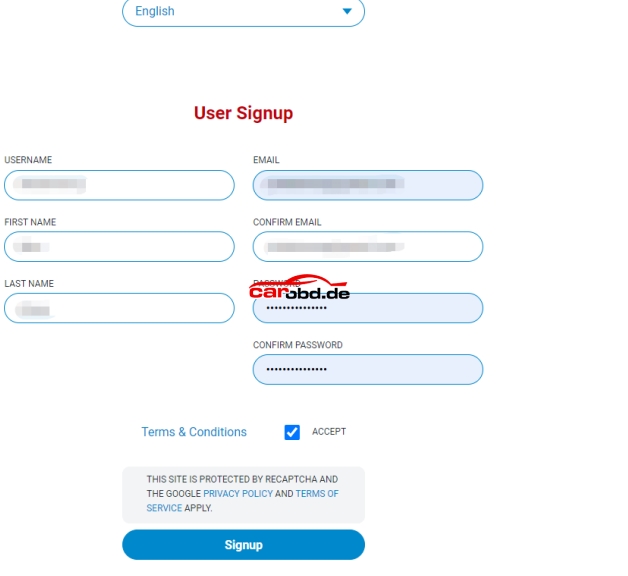
Once you accept the terms and conditions, click the “Signup” button.
This will create your account and AutoAuth will send you an email to confirm your email address. You are required to click the link sent in email to confirm your email address. Once this is done, you can then log in to the AutoAuth portal to manage your account at the AutoAuth home page.
https://webapp.autoauth.com.
4) To pay for service, first log in to your account. You will see a welcome to AutoAuth message. Click “Service Center Signup/Independent Technician Signup”
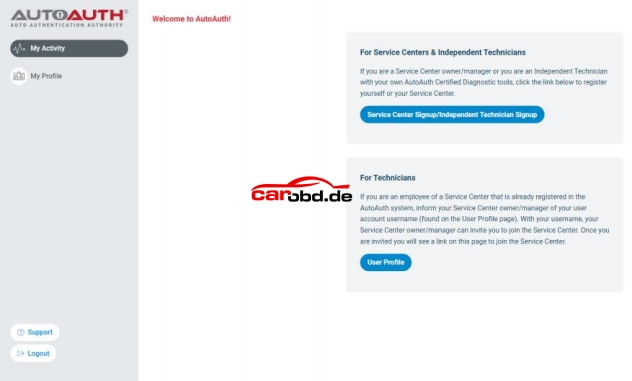
You’ll be taken to the Service Center registration form.
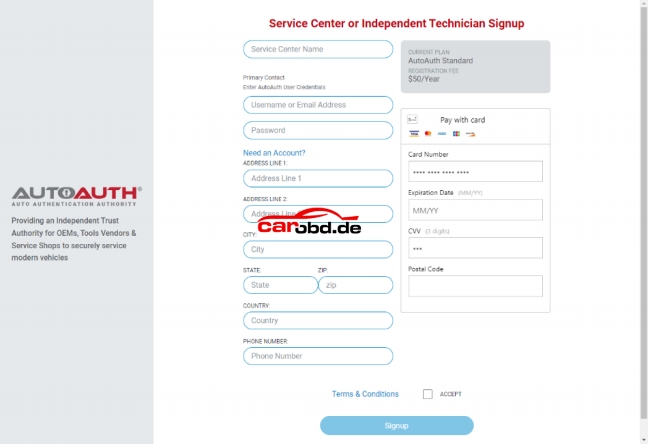
Enter a name for your shop. (This can be changed later.)
Enter your username. (This cannot be changed later.)
Enter your password.
Enter your Address, city, state, postal code, and country.
Enter your phone number.
Enter your credit card number.
Enter your expiration date of your card.
Enter the CVV number of your card.
After reading the terms and conditions, check the box that you agree to them.
Check the box at the bottom to confirm you are not a robot.
Click the “Signup” button at the bottom of the page.
NOTE: The payment charge by AutoAuth directly, TOPDON is not involved in any transaction process.
You will now have “Manage Tools” and “Manage Users” available in your menu at the left of the page as shown below:
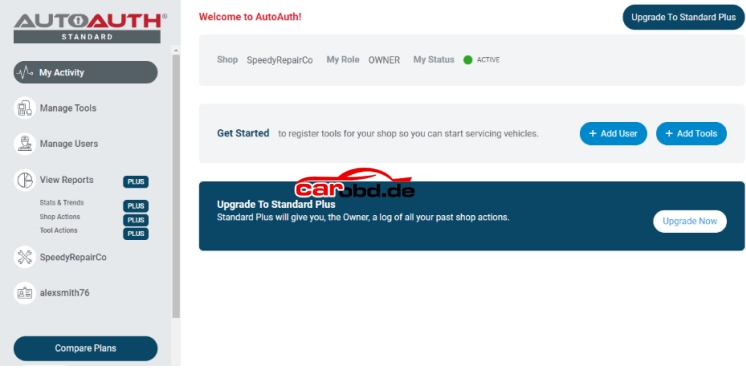
The next step is to register your tool serial numbers.
5) After logging in as the shop owner, select “Manage Tools” from the left menu
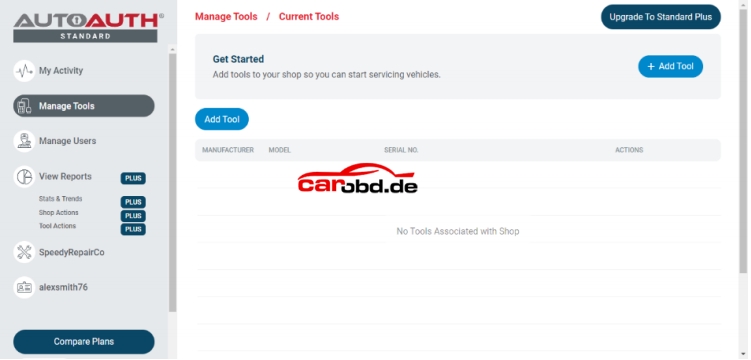
Click the “+ Add Tool” button.
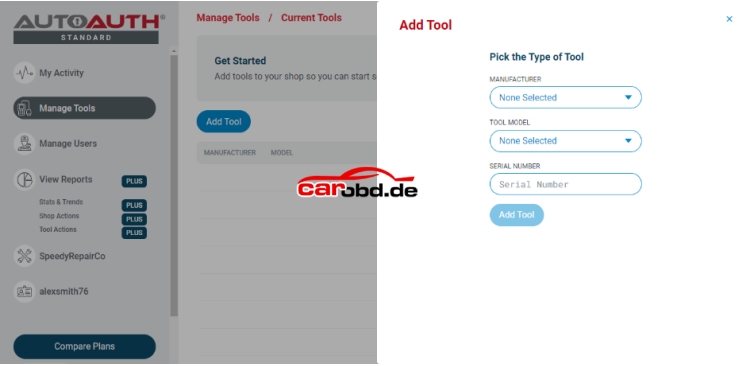
Select the manufacturer of TOPDON.
Select the model of your tool. (Phoenix Lite 2, Plus, Elite, Pro, Smart,Remote, Max)
Enter the serial number for your tool.
Click the “Add Tool” button. You may now see the TOPDON diagnostic tool in your list.
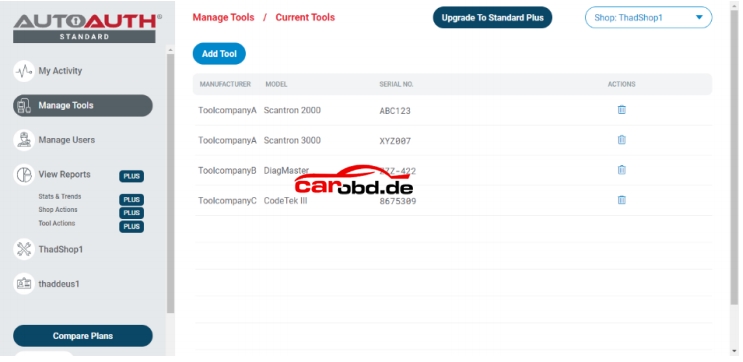
Note that a TOPDON tool serial registered to a shop can be used by all registered shop users. However, a tool serial cannot be used by more than one shop.
After your TOPDON tools are added to your shop account, they are authorized by AutoAuth to unlock the secure gateway on vehicles. There is no delay after registering your serial numbers.
For more technical and product support, please contact Jenny
Whatsapp: +86 19947637411
Email: Sales@Carobd.de