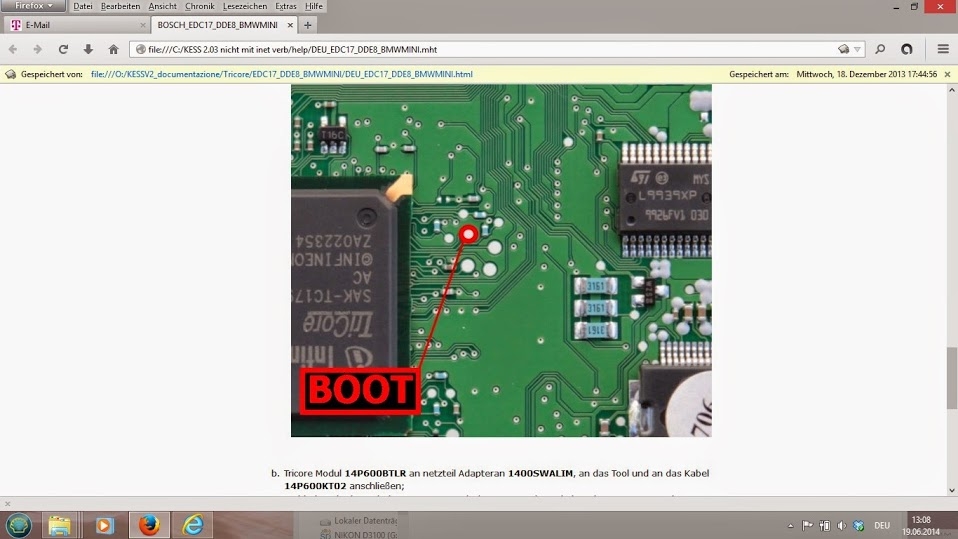
BMW e91 318d read write EDC17 c41 DDE8 error with KESS V2

Problem:
I have problems with my Kess V2 and need help.

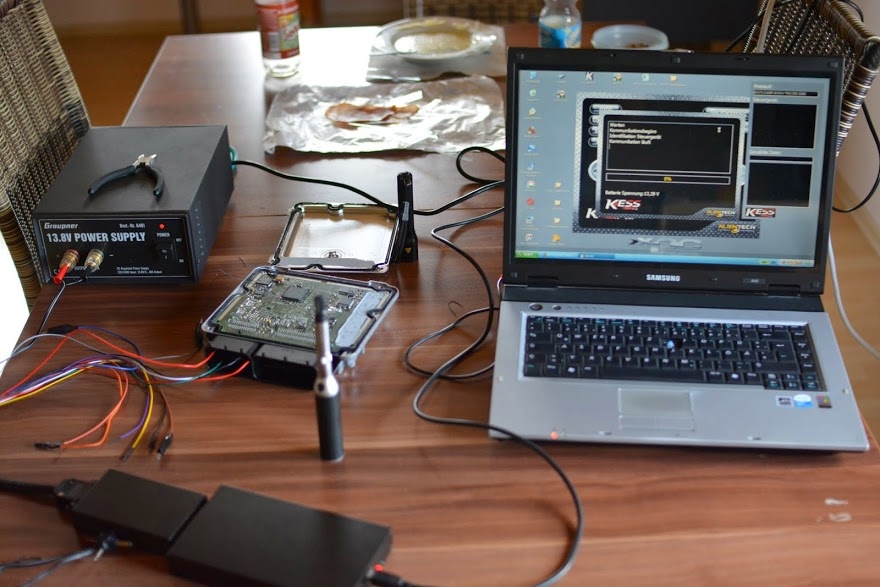
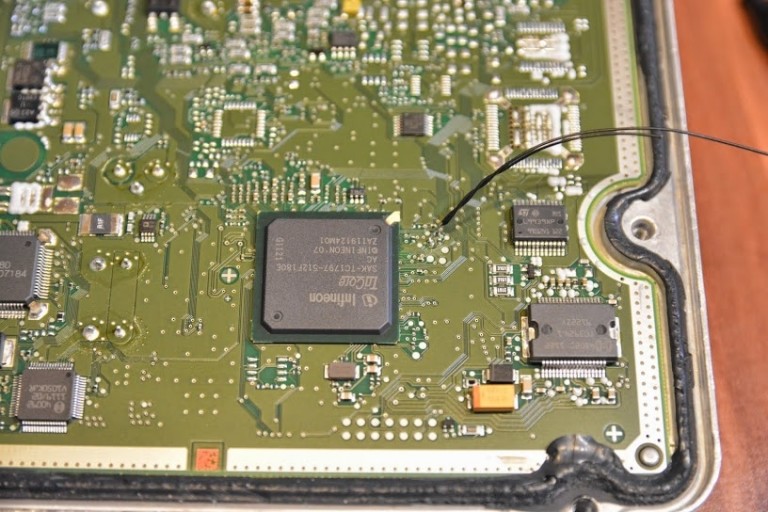
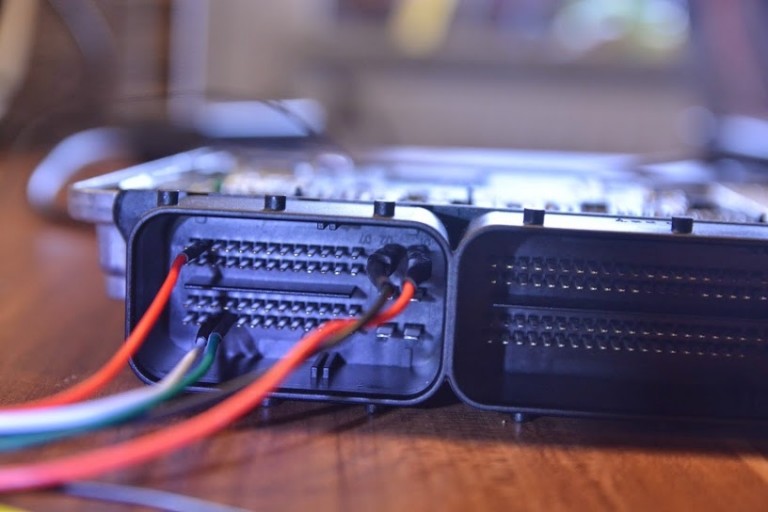
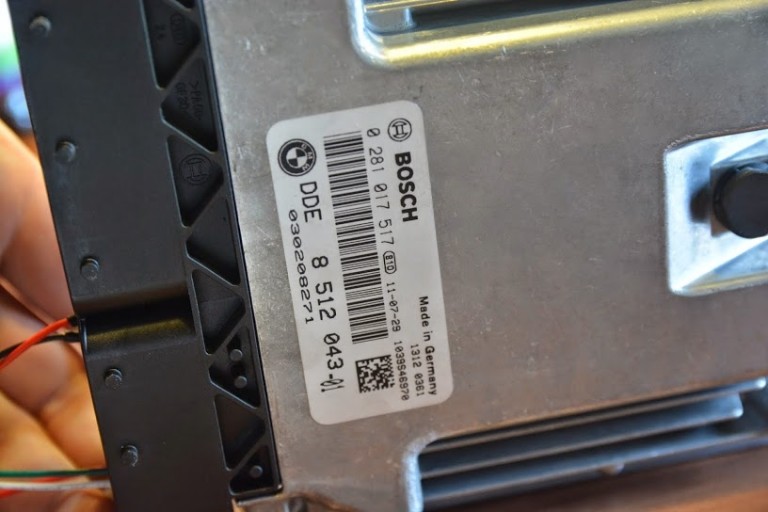
I try my BMW e91 318d read and write EDC17 c41 DDE8.

Step 1 with OBD connector – TOOL – OBD2DATA I can do, no problem, everything is OK.
Problem Number 1.

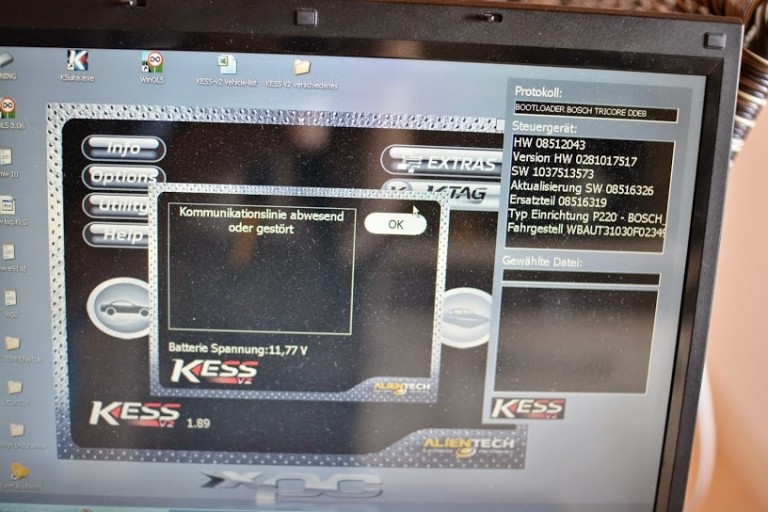
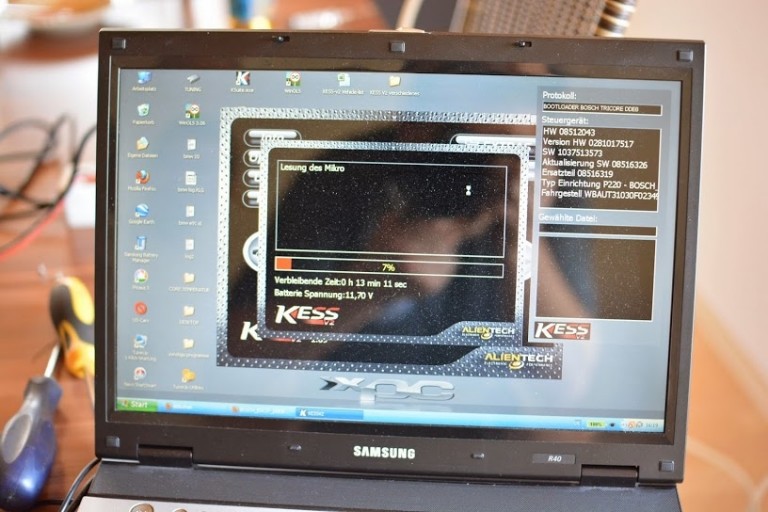
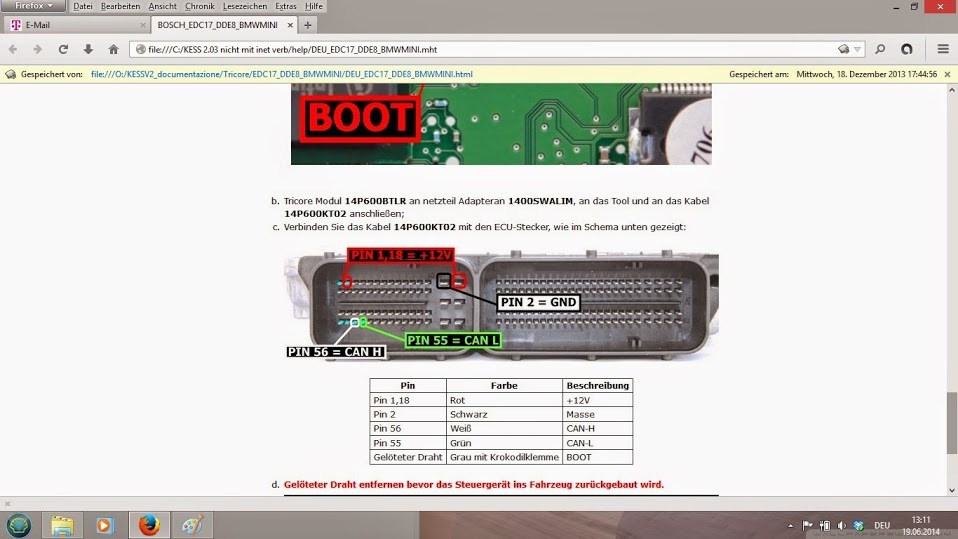
Step 2 boot loader with backup read – many communication problems -> Crash! After many attempts, I was able to read backup!

Step 3 with Flash boot loader (ECU) read – many communication problems -> Abort, abort, abort! After many attempts, I was able to read original file but in the end came problem # 2 -> Checksum error.

I am using Windows XP sp2 with visual-c …, Microsoft. NET Framework 4
Internet was always as KESS V2 was executed.

We have attached a log file and some pictures.

Please help, thank you.

bmw-e91-318d-read-write-edc17-c41-dde8-error-with-kess-v2-blog-1

bmw-e91-318d-read-write-edc17-c41-dde8-error-with-kess-v2-blog-2

bmw-e91-318d-read-write-edc17-c41-dde8-error-with-kess-v2-blog-3

bmw-e91-318d-read-write-edc17-c41-dde8-error-with-kess-v2-blog-4

bmw-e91-318d-read-write-edc17-c41-dde8-error-with-kess-v2-blog-5

bmw-e91-318d-read-write-edc17-c41-dde8-error-with-kess-v2-blog-6

bmw-e91-318d-read-write-edc17-c41-dde8-error-with-kess-v2-blog-7

bmw-e91-318d-read-write-edc17-c41-dde8-error-with-kess-v2-blog-8

bmw-e91-318d-read-write-edc17-c41-dde8-error-with-kess-v2-blog-9

bmw-e91-318d-read-write-edc17-c41-dde8-error-with-kess-v2-blog-10

Solution:
It means KESS V2 can’t read and write this type of ECU, ECUs on the same car model in different areas are sometimes encrypted in different ways, and therefore the tool cannot always work on the same car model.

VVDI MB BGA Tool V2.0.6 Key Programmer

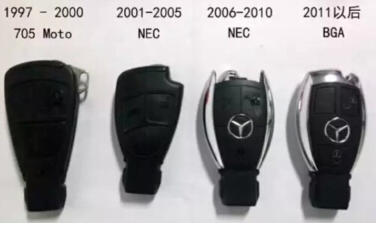
VVDI MB Tool is powerful Mercedes Benz Key Programmer, can calculate Benz BGA key password and add new BGA Keys, support all Benz keys after year 2011. Newest Update VVDI Benz can read EIS under OBD mode will check car power automatically. Avoid lost data in EIS

VVDI MB BGA Tool highlights:

1. Newest version: V2.0.6
2. Update online
3. VVDI Benz can calculate Benz BGA key password and add new Mercedes BGA Keys

4. VVDI MB Tool support all Benz keys after year 2011
Customer feedback on VVDI Benz BGA tool:


VVDI-MB-Tool-support-all-Benz-keys-after-year-2011

1. i test password from 212 new model super
good tool need pay 2 tokens
need 10 min all ok
2. Do you have see video of this tool?
They say can do all key lost on w212.
No tool can do it even Mehaco or nec pro51.
w212 eis on video, sure it can.. mehaco/mercedesinstrument can do all keys lost on w212.. the option is availible a few months..
Tips on VVDI Benz:
1. If you have IKEYCUTTER CONDOR XC-007 or iKeycutter CONDOR XC-MINI Key Cutting Machine, please buy SK185-B
We can calculate password once for free everyday, if you need more in the same day, you need pay 35.00USD/Once

2. One cutting machine can only bind with one SK185-B,if you want to buy several SK185-B,you should also buy corresponding cutting machine,or you should buy SK185

3. If you do not have IKEYCUTTER CONDOR XC-007 or iKeycutter CONDOR XC-MINI Key Cutting Machine, please buy SK185
The password calculate cost is 35.00USD/Once, collect need about 4 mintues, calcuate need about 2 mintues

Xhorse VVD MB BGA TOOL Function introduction
1.support BE key, read password and prepare new key via IR.
2.NEC V051, V057 support on board get password
3.All NEC keys support on board write and erase
4.password calculate:support BGA keys, NEC keys(include 51, 57version)etc.,work fast.
5.support renew EIS and ELV
6.support write EIS and ELV
7.support online generate key file
8.unlock ELV function will be released soon.
9.Renew other control modules function will support soon
Latest Technical details :
Note: VVDI MB BGA tool update goes well, the following workable models are for reference only.
Model support IR/OBD:
W164, W164 2009+
A166, W197,W212, W218, A246
A169, W209, W211
W172, W204, A207
W203
W204, W207, W212 only by dump
W209 only by dump
W210
W215, W220
W230
W216
W221
W906
Keys version supported:
v03, v06, v08
v05, v07, v09
v59,v61
Two adapters: one for versions 28, 35, 40, 51, 57, another one for version 59.
VVDI MB TOOL V2.0.6 Newly Update(2016-01-16)
*** Require firmware V2.0.6
===== BENZ V2.0.6 =====
1. Attention: All user update device to firmware v2.0.6, software v2.0.6, the lower version dont support password calculation
2. User manual v1.1 released, overview v1.2 released
3. Add support for disable key
4. Fix bug for test W164, W221 EIS status
5. Fix bug for write EIS data
6. Bugfix
This is from Auto Key Programmer technical support :http://www.carobd.de/wholesale/xhorse-vvdi-benz-tool-including-bga-calculation.html

V2015.07 Spare Parts Catalog for Porsche Cars PET 7.3

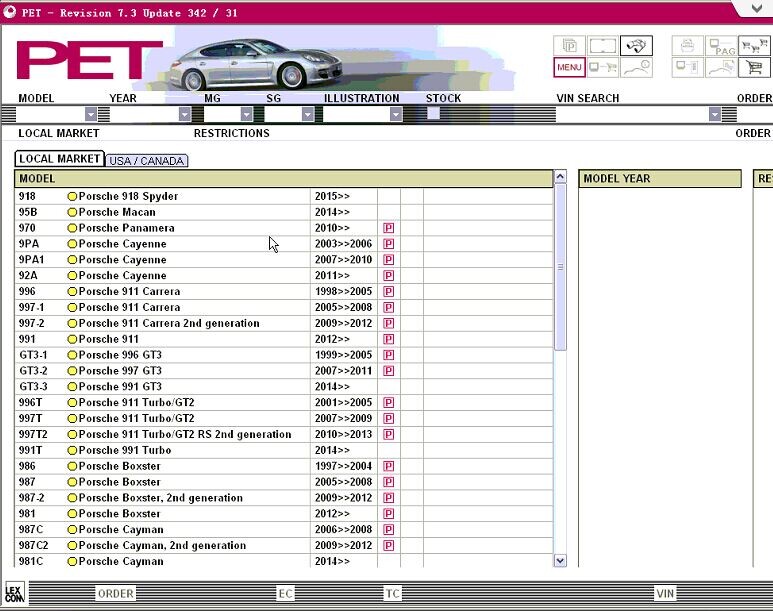
PET Porshe electronic parts catalog contains part numbers for For porsche genuine parts.

Language: English, Dutch, Spanish, Italian, German, Turkish, French, Swedish
OS: Windows XP
Version: 2015.07

Spare-Parts-Catalog-for-Porsche

2015.07V Spare Parts Catalog for Porsche Cars Description:
Electronic spare parts catalogue Porsche contains the full information on spare parts.
The catalogue occupies one CD, it is possible to establish for work with use of CD, or completely on the winchester.
The spare parts catalog Porsche allows to enter VIN number of the machine and carries out a filtration, using it, but thus number of a body is not taken into account, that is the program Porsche will define on VIN model and modelling year (using first 11 symbols VIN), the rest should be chosen independently.
It means, that the program Porsche easy digests VIN numbers with thought up last figures that can lead to to mistakes in identification of units.
In the program there is a function of search of application spare parts, she allows to search application of a detail, and also the information concerning to replacements and returnable parts, the information about “fractional” the deputy.
At work with the given catalogue, it is necessary to pay special attention to various footnotes and notes, and also if necessary to look in lists of fractional replacements and V, S and P-page more often to not receive a detail which you did not wait. The price-list is delivered separately either on CD, or on several diskettes.
Models covered by this program:
For porsche 918 Spyder [918] 2015 ->
For porsche Macan [95B] 2014 ->
For porsche P anamera [970] 2010 ->
For porsche C ayenne [9PA] 2003 – 2006
For porsche C ayenne [9PA1] 2007 – 2010
For porsche C ayenne [92A] 2011 ->
For porsche 911 Carrera [996] 1998 – 2005
For porsche 911 Carrera [997-1] 2005 – 2008
For porsche 911 Carrera 2nd gen. [997-2] 2009 – 2012
For porsche 911 [991] 2012 ->
For porsche 996 GT3 [GT3-1] 1999 – 2005
For porsche 997 GT3 [GT3-2] 2007 – 2011
For porsche 991 GT3 [GT3-3] 2014 ->
For porsche 911 Turbo/GT2 [996T] 2001 – 2005
For porsche 911 Turbo/GT2 [997T] 2007 – 2009
For porsche 911 T / GT2 RS 2nd gen. [997T2] 2010 – 2013
For porsche 991 Turbo [991T] 2014 ->
For porsche Boxster [986] 1997 – 2004
For porsche Boxster [987] 2005 – 2008
For porsche Boxster, 2nd generation [987-2] 2009 – 2012
For porsche Boxster [981] 2012 ->
For porsche Cayman [987C] 2006 – 2008
For porsche Cayman, 2nd generation [987C2] 2009 – 2012
For porsche Cayman [981C] 2014 ->
For porsche 356 356A [356] 1950 – 1959
For porsche 356B 356C [356.] 1960 – 1965
For porsche 911 Turbo/GT2 [911E] 1975 – 1977
For porsche 911 912 [911-1] 1965 – 1969
For porsche 911 [911] 1970 – 1989
For porsche 911 Carrera 2/4 [964] 1989 – 1994
For porsche 911 Carrera [993] 1994 – 1998
For porsche 914 [914] 1970 – 1976
For porsche 924 [924] 1976 – 1985
For porsche 924S [924S] 1986 – 1988
For porsche 944 [944] 1982 – 1985
For porsche 944 [9442] 1985 – 1991
For porsche 968 [968] 1992 – 1995
For porsche 928 [928] 1978 – 1995
For porsche Carrera GT [GT] 2004 – 2006
For porsche 959 [959] 1987 – 1988
Special Catalogues:
Tequipment Catalogue [TEQ] 1985 – 2012
Tequipment 981 991 [TEQ1] 2012 ->
Tequipment Cayenne [TEQ2] 2003 ->
P anamera Tequipment [TEQ3] 2010 ->
Tequipment Macan [TEQ4] 2014 ->
Classic accessories [CLA] 1950 – 1998
Exchange Catalogue [ATK] 1963 – 2012
After Sales Seivice literature [LIT] 1950 – 2011
Seats Catalogue – 944/968/911/928 [STZ] 1985 – 1998
This is from carobd.de tool website technical support: Spare Parts Catalog for Porsche Cars PET 7.3

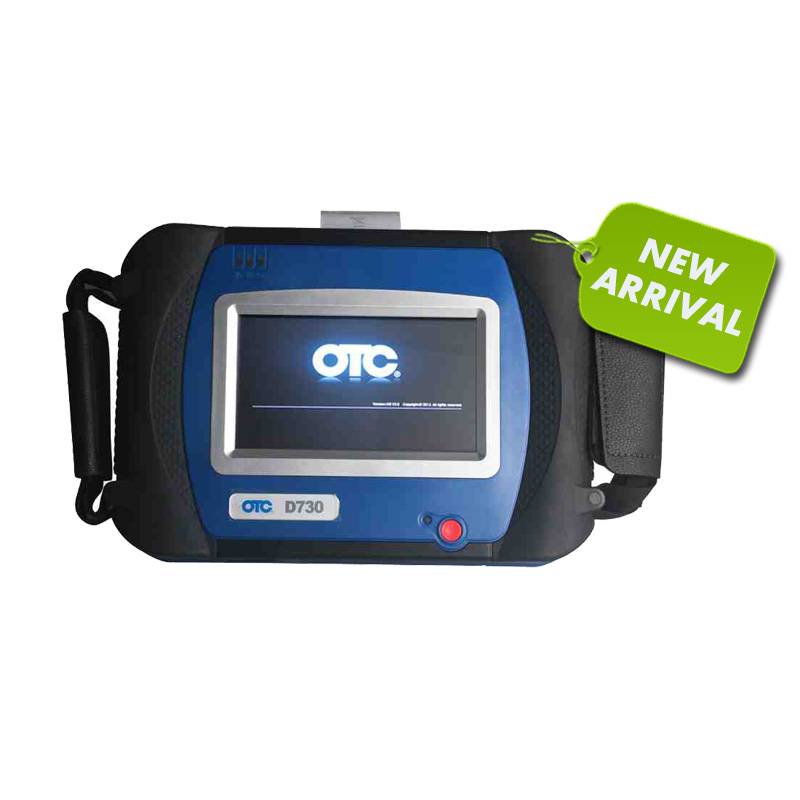
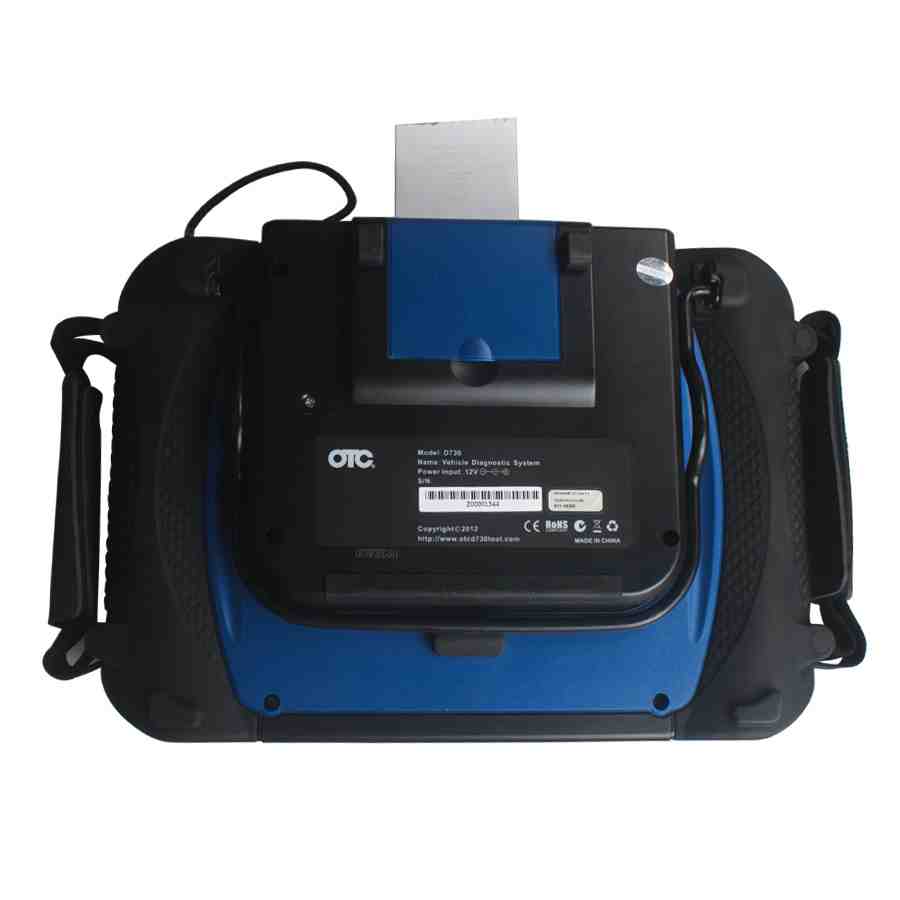
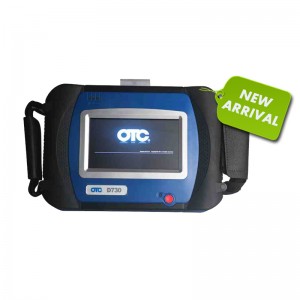
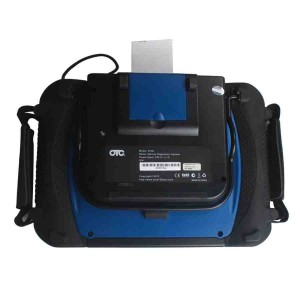
SPX AUTOBOSS OTC D730 Automotive Diagnostic Scanner with Built In Printer

spx-autoboss-otc-d730-automotive-diagnostic-scanner-blog-1

spx-autoboss-otc-d730-automotive-diagnostic-scanner-blog-3

spx-autoboss-otc-d730-automotive-diagnostic-scanner-blog-4


SPX AUTOBOSS OTC D730 highlight:

Multi-language available: English, Italian, German, French, Spanish, Russian, Polish and Turkish. Note: the default language is English; you are optional to download the language you want.
2. Update: frequent Internet based software updates.
4. Access to powertrain, chassis and body systems, it is new and powerful scan tool for workshop and car owner’s.
5. Covers more than 50 vehicle makes from Europe, America, Australia and Asia.
6. One Year Warranty
Built in Printer
High resolution 7” VGA colour TFT touchscreen display
Stand allowing hanging on steering wheel
Operation System (OS):

Windows CE operating system

SPX AUTOBOSS OTC D730 Automotive Diagnostic Scanner more details:

Following Content include:

1) SPX AUTOBOSS OTC D730 packages

2) OTC D730 Included Accessories

3) OTC D730 Vehicle Cable Complete Set

4) OTC D730 Scanner function

5) OTC D730 Scanner works with what electronic control system

6) OTC D730 works with what car models

Details:

SPX AUTOBOSS OTC D730 packages:

Being an automotive diagnostic scanner for all makes, it has a big package with all kinds of adapters and cables, its package weights 12.3KG (27.12LB )

Package including:

ASSM D730 EMEA

SD Card 8GB

Label of Microsoft WinCE

Benz-38 Adaptor

Chrysler-16 Adaptor CCD

Toyota-22 Connestor

Mitsubishi 12+16 Connestor

Honda-3 Connestor

Audi-4 Connestor

Nissan-14 Connestor

Benz-4 Connestor

Citroen-16C Connestor

Benz-14 Connestor

OBDll-16 Connestor

BMW-20 Connestor

Marelli-3 Connestor

GM/DEAWOO-12 Connestor

KIA-20 Connestor

Mazda-17 Connestor

TOYOTA-17 Connestor

Mini-3 Connestor

CITROEN-2 Connestor

Fiat-16 Connestor

Cigarette lighter line

Battery Cable

Main Cable 2M

Fuse 5A 30X6

Fuse 5A 20X6

PRINTING PAPER

SD Card Reader

D730 User Manual

AC/DC Adaptor

European Power Supply Plug

OTC D730 Included Accessories:

Carrying case

100 – 240 volt power supply

SD card reader

Built-in printer kit
OTC D730 Vehicle Cable Complete Set:

OBD II adapters

European OBD I adapters

Australian OBDI adapters

Asian OBD I adapters

USA Domestic OBD I adapters

Chinese adapters

We can FREE added new cars for you (if you need leave message on order)

OTC D730 Scanner function:

Quick Test function to test most vehicle systems
Fault codes (DTC’s), Data Stream and Service Reset
Actuations, Adaptations- and Control Module Coding
CAN Bus with high/low speed
One OBD II/EOBD connector for all CAN Bus systems
6 .Demo Mode for many OEM’s

Data graphing
Self-check function
OTC D730 Scanner works with what electronic control system?

Chassis :

SBC – Sensortronic Brake Control

ESP – Electronic Stability Program

AIRmatic – AIRmatic ABC

TPC – Tyre Pressure Monitor

ABS – SRS

Body:

Seats and Doors

Actual Values

Actuations

Initial Startup

Control Unit Adaptations

Correction Programming

Air Conditioning:

AAC – Automatic Air Conditioning

REAR AC – Rear Air Conditioning

STH – Stationary Heater

HSW – Heated Steering Wheel

Informatio n and Communication:

ICM – Instrument Cluster

SCM – Steering Column Module

PTS – Parktronic System

Audio, Video, Navigation

Telematics

Drive:

Transmission

ESM – Electronic Selector Module

DTR – Distronic

Motor Electronics

Idle Re-learn

Diesel Injector Coding

Diesel Pump Initialisation

OTC D730 works with what car models?

European Vehicles : Audi, BMW, Citroen, Fiat, Ford, Jaguar, Lancia, Land Rover,Mini, Mercedes-Benz, Opel, Peugeot, Porsche, Renault, Seat,Skoda, Smart, Volkswagen and Volvo

American Vehicles: Chrysler, Ford and General Motors

Chinese Vehicles: Chery, Foton, Geely and Great Wall

Asian Vehicles: Daewoo, Honda, Hyundai, Infiniti, Isuzu, Kia, Lexus, Mazda,Mitsubishi, Nissan, SsangYong, Subaru, Suzuki and Toyota

AUSTRALIAN Vehicles: Ford and Holden

SD Connect C4 firmware update problems and solution

SD Connect C4 firmware update problems and solution

Question:

I have 5 Sdconnect multiplexers here.

They are all china clones.

Not all from same shop and not all same age(same SN).

I think the 2 which are still working might be the same.

tl;dr flashed multiplexers with toolkit, display doesn’t work anymore, power management pic chip bricked ?

In order to use them with the latest versions of star diagnosis

I needed to update the firmware.

The first 2 multiplexers updated just fine and also work with latest xentry.

But then i tried to update the 3rd one and 4th one.
bootimage and commandserver updated without an error, but then i flashed the power managment firmware. the display went dark and never came back. (the display went dark too when i flashed the first 2, but i came back after a second). the multiplexer is still booting and connecting to the pc. sd toolkit can still access the mux. xentry can still use it. however, xentry shows a voltage of 65 volts when the mux is only connected to 12v. Further diagnostics have not been testet. the toolkit shows all software versions as expected, except power managment is 0.0.0.
I can reflash power management, but without any result.

Is there a way to rescue or repair these 2 multiplexers?

Fix the power management chip somehow.

The fifth mux has some other damage, doesn’t boot. can be used for spare parts maybe.

How to properly update firmware?

You must update only 00, after the update open DAS Standalone, the rest of the updates automaticly install when you open DAS, don’t forget to install batterys!

MB SD Connect C4 firmware update procedure:

http://www.carobd.de/upload/pro/201601/mb-sd-c4-hardware-upgrade-instructions.rar

mb-sd-c4-star-diagnosis-1

Finally! Everything worked again

First of all, i am not talking about CSD 2.9, it is power management 2.8 and 2.9. i could update OS 2.3 and CSD 2.11 just fine.
all of these are included in the sdconnect toolkit.
only when i flahsed power management 2.9 (03_ PmPic29_cpld13), it bricked my power management chip.

i have multiple devices, i took them apart and changed the boards of the multiplexers. there was one board that was able to flash the power management and everything worked again.

Clone 4D transponder with Zed-BULL and TPX Cloner Module

Clone 4D transponder with Zed-BULL and TPX Cloner Module

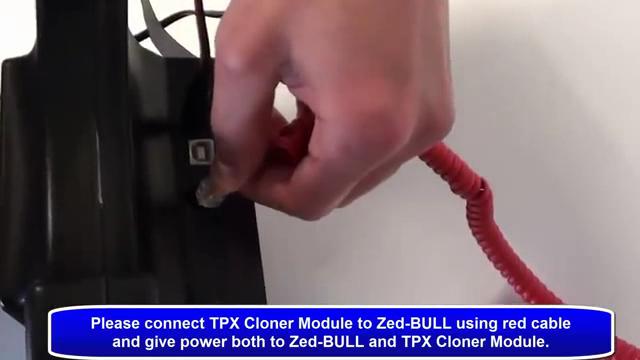
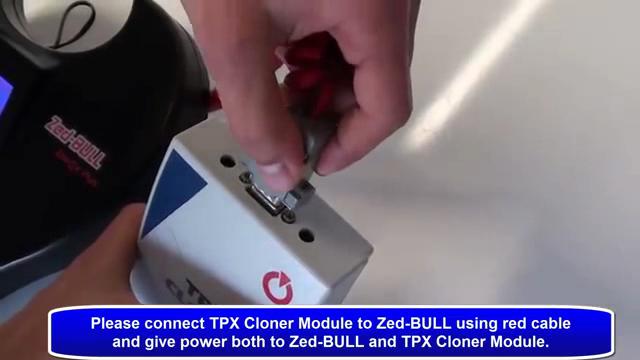
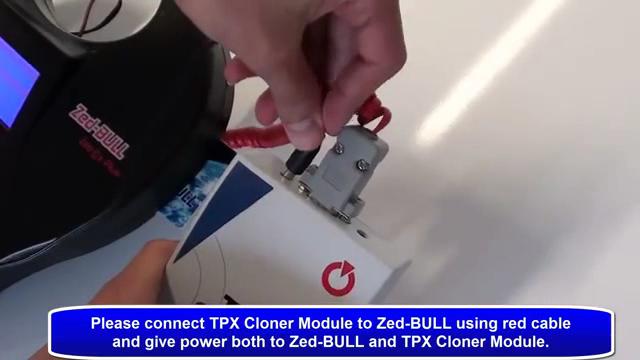
1.Please connect TPX cloner Module to Zed-bull using cable and give power both to Zed-bull and TPX Cloner Module.

Cloning-4D-transponder-using-Zed-BULL-1

Cloning-4D-transponder-using-Zed-BULL-2

Cloning-4D-transponder-using-Zed-BULL-3

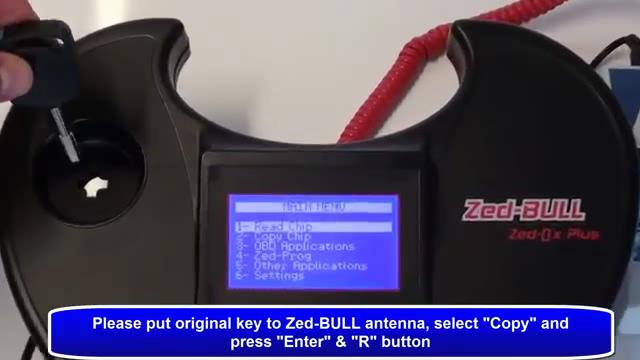
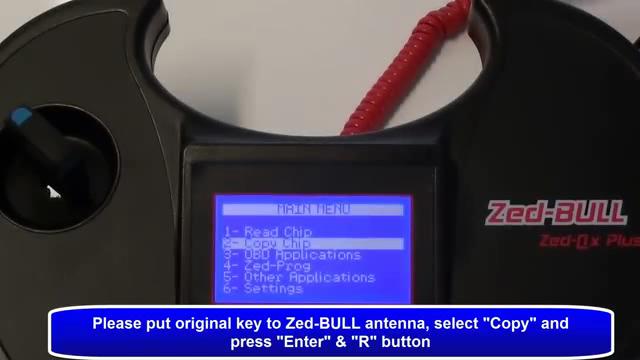
2.Please put original key to zedbull antenna, select “Copy” and press “Enter” and “R” Button.

Cloning-4D-transponder-using-Zed-BULL-4

Cloning-4D-transponder-using-Zed-BULL-5

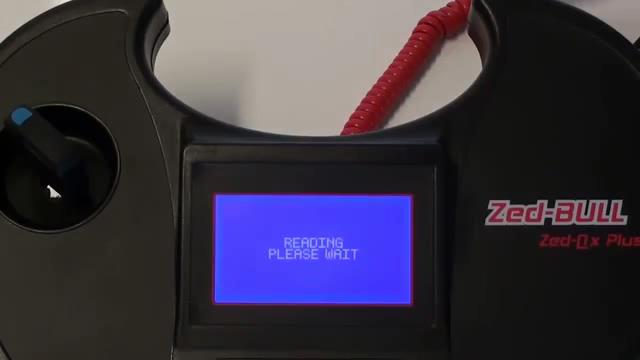
3. Caution! Put the original key and press R! Don’t remove the key during the process!

Cloning-4D-transponder-using-Zed-BULL-6


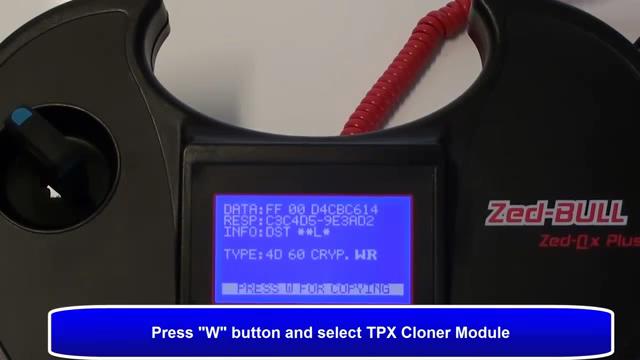
4. Press “W” button and select TPX Cloner module.

Cloning-4D-transponder-using-Zed-BULL-7

Cloning-4D-transponder-using-Zed-BULL-8


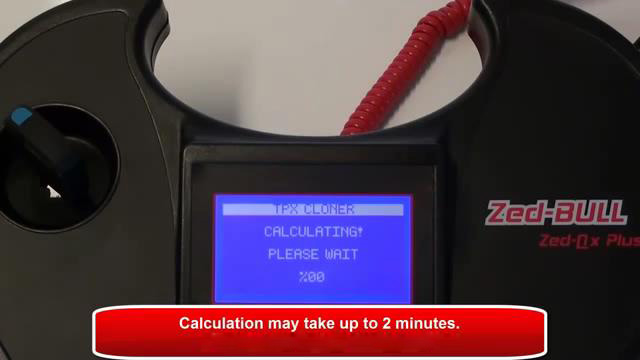
5.Writing, connection and calculating, calculating may take up to 2 minutes.

Cloning-4D-transponder-using-Zed-BULL-9

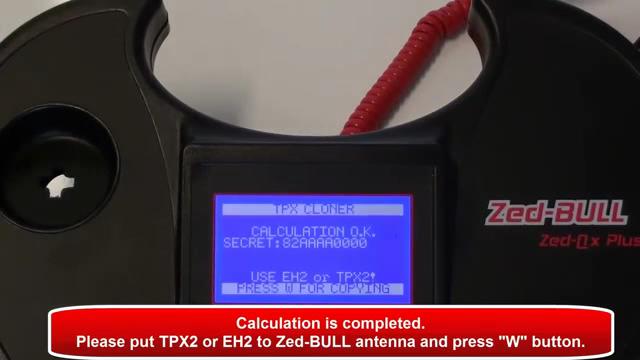
6. Calculation Ok, please put TPX2 or EH2 to Zed-BULL antenna and press “W” button.

Cloning-4D-transponder-using-Zed-BULL-10

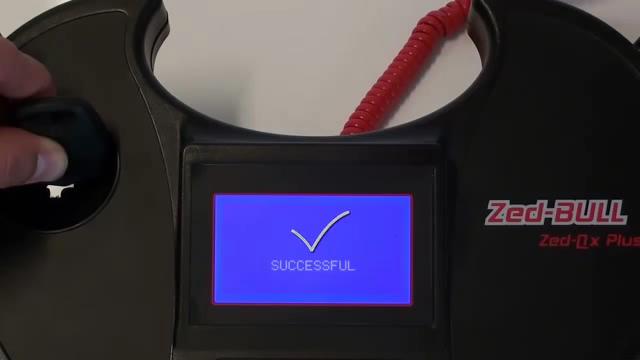
7. Verifying, and successful.

Cloning-4D-transponder-using-Zed-BULL-11

Bosch ESI Tronic Installation Step by Step

Here we start:
1: Mount ESI Tronic Iso image “Recommend Magicdisc”.
2: Open the bosch ESI DVD and then run Setup.exe.
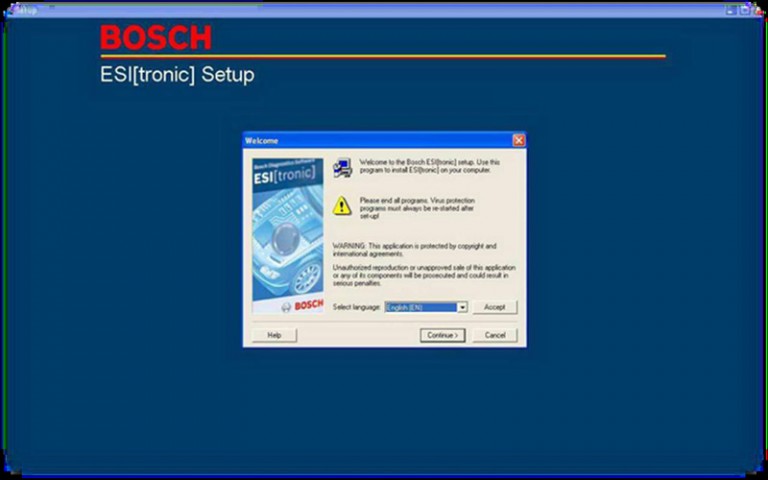
3: Few sec’s then this window will appear, select your language -> Continue.

BOSCH-ESI-Setup-1

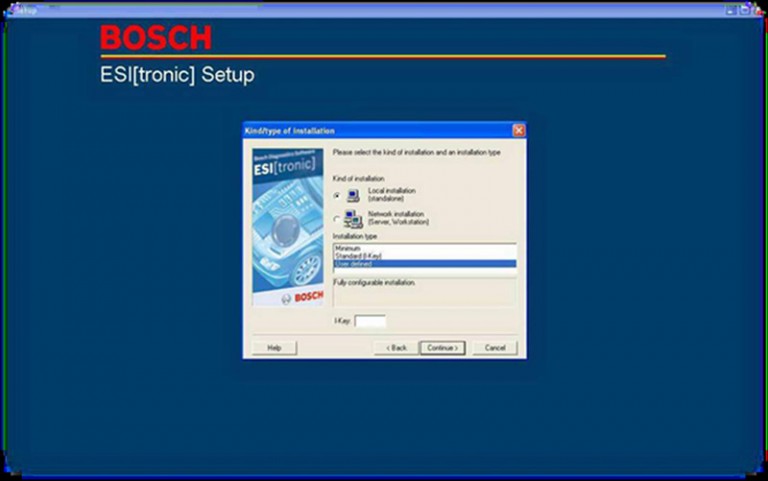
4: New window will appear, Select user defined installation and leave I-key blanked -> Continue.

BOSCH-ESI-Setup-2

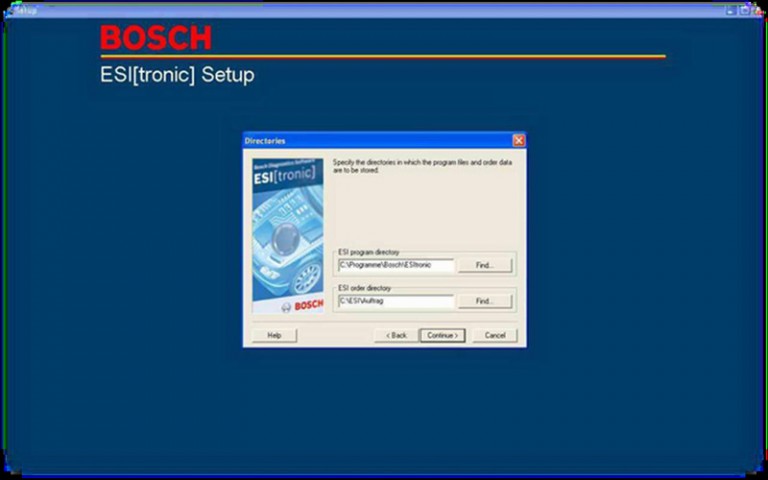
5: Chose your Installation Directory -> Continue.

BOSCH-ESI-Setup-3

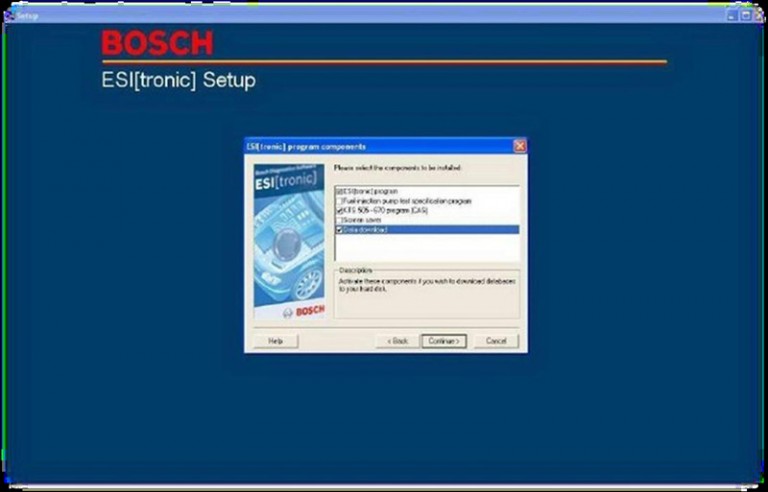
6: New window will appear, just tick what u want (4ex: screen saver or Fuel injection pump section…).

BOSCH-ESI-Setup-4

7: U will get this window.

BOSCH-ESI-Setup-5

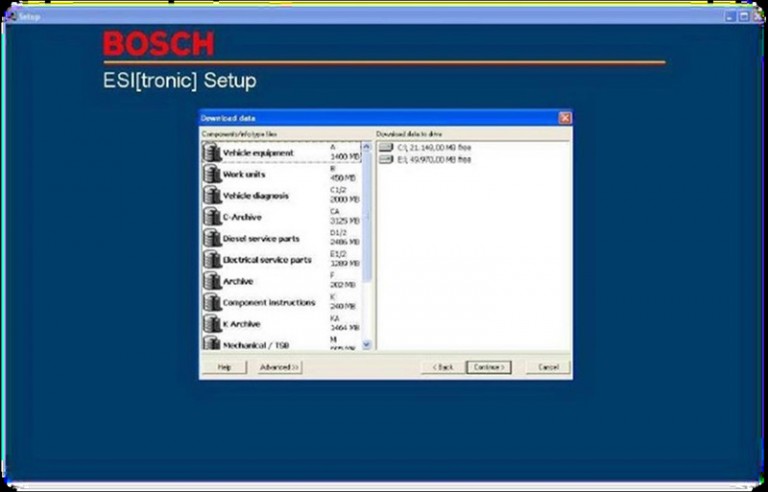
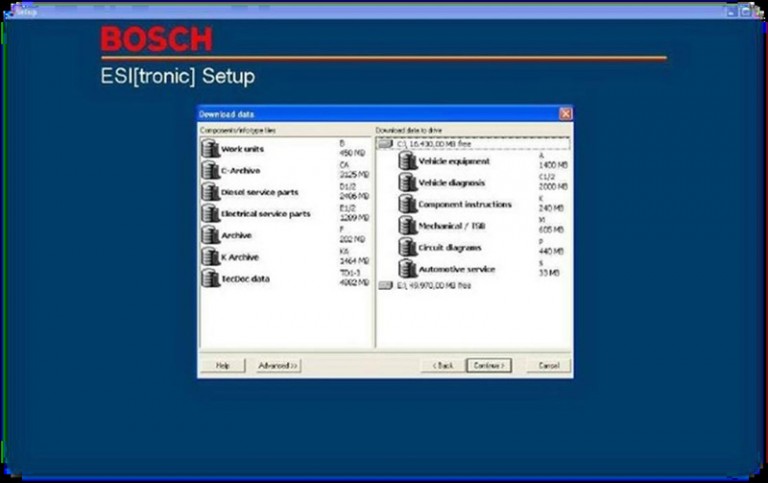
8: Drag and Drop the bases you want to install.

BOSCH-ESI-Setup-6

9: New window will appear, click Continue.

BOSCH-ESI-Setup-7

10: Installation will Start

BOSCH-ESI-Setup-8

11: Take a cup of coffee till the installation is finished.
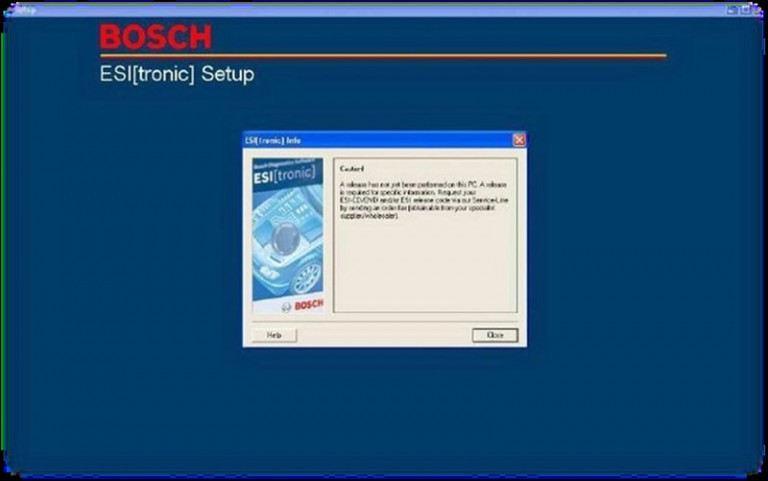
OBD2 enginner Note: During the installation it will ask you to import DVD 2 so just mount Image 2 and then Continue.
Now this window will appear, Click Close.

BOSCH-ESI-Setup-9

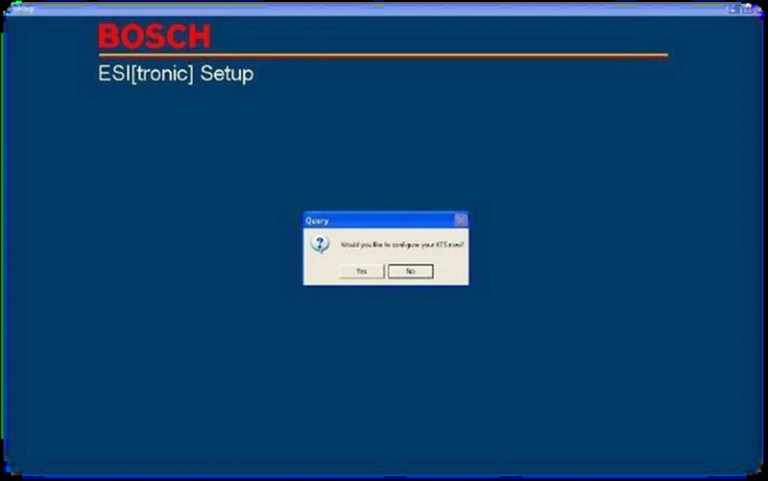
12: New window will appear, U can click Yes “If u want to enter the license now” OR Click No ” If u want to install the license after installation is finished.
In this case, I’ll click NO.

BOSCH-ESI-Setup-10

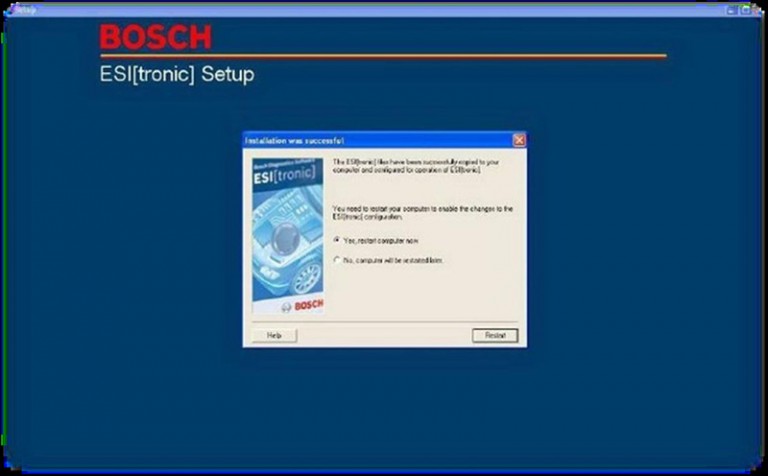
13: Restart windows by clicking finish.

BOSCH-ESI-Setup-11

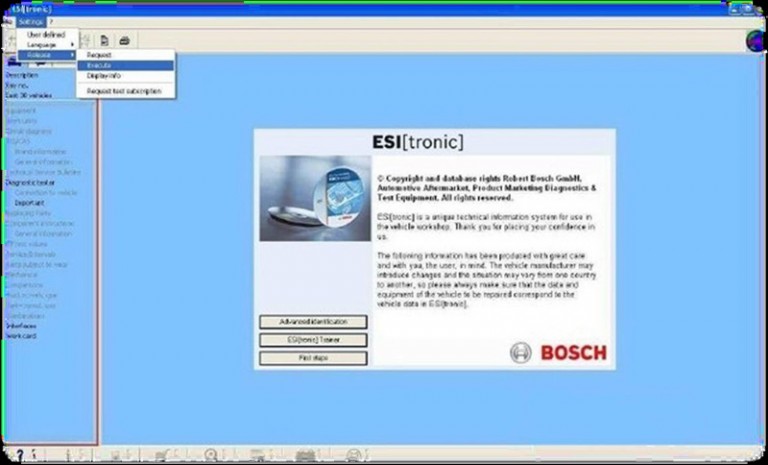
14: Now here you see how to activate ur ESI.

BOSCH-ESI-Setup-12

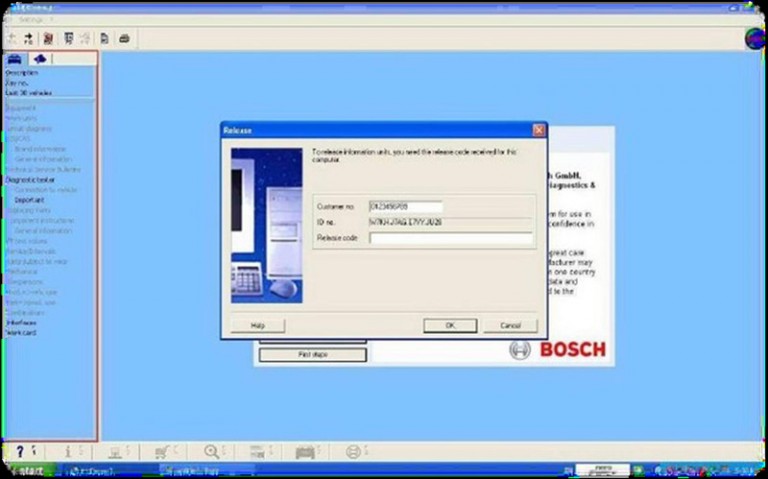
15: New window will appear, Customer code could be any number, to get ur Release code, copy ID no. to keygen, generate, then paste the Release code back to the window.

BOSCH-ESI-Setup-13

16: after you paste your Activation key , then click Ok.

BOSCH-ESI-Setup-14

17: Click close. Job is done en the bosch ESI DVD and then run Setup.exe.

Engine Control Module Recovery by GM MDI or Tech 2

This is step-by-step instruction on how to do engine control module recovery on Cadillac cars.

modules tested successfully with the tools and guide below:
2009 Buick Enclave
2007-2009 Cadillac CTS, SRX, STS
2009 Chevrolet Traverse
2007 GMC Acadia
2009 GMC Acadia
2007 Saturn OUTLOOK
2009 Saturn OUTLOOK

Diagnostic tool:
GM MDI module/
GM GM Tech2 GM with 32MB Card and TIS2000

gm-tech2-gm-diagnostic-scanner-blog-1
Engine control module recovery procedure:
1. Disconnect the programming device.
2. Power down the control modules connected to the GMLAN bus by disconnecting the positive battery cable for 2 minutes.
3. Reconnect the positive battery cable.
4. Determine which programming device will be used to perform the recovery steps.
If using MDI, connect to the programming station or Notebook using a cable (LAN). Proceed to Step 5 and then Steps 6-8.
If using a Tech 2 proceed to Steps 6-8.
5. Reboot the programming station or Notebook. This is to make sure nothing is in memory.
Kindly Note: Selecting Replace and Reprogram from the Select Diagnostic Tool and Process Screen is REQUIRED because some of the calibrations may be erased from the initial attempt to reprogram the module.
6. Reprogram the engine control module. Select Replace and Reprogram from the Select Diagnostic Tooland Process Screen.
7. Follow the on-screen instructions to complete the programming event.
8. Clear all DTCs using the GM Tech2 GM with 32MB Card and TIS2000 or GDS.

Xtool X100 PAD Tablet Active Procedure

About Xtool X100 Pad Tablet

The first tablet key programmer in the word. Xtool X100 PAD performs key programming, mileage adjustment, oil service light reset, timing belt service light reset, tire pressure warning light reset , EPB reset, throttle body reset, battery reset, steering angle calibration and OBD-II engine diagnosis.

Xtool X-100 PAD Activation

Note: please activate X-100 PAD before you use it to test vehicles.

Read Xtool X100 Pad Tablet Active Procedure as follows.

Procedure:

Connect X100 Pad Tablet to the internet connection.
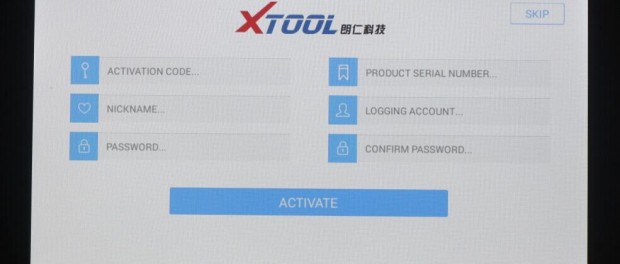
Boot X100 Pad Tablet, go to X100 pad user interface. Fill in personal information
Including activation code, product serial number (each device will have a serial number and activation code), nickname (workshop’s name or user’s nickname), login account (can be your email address pr cell phone number) and password, the system will then save it. Activation is a onetime process. The diagnostic application will start after activation.

x100-pad-active-01
Note:

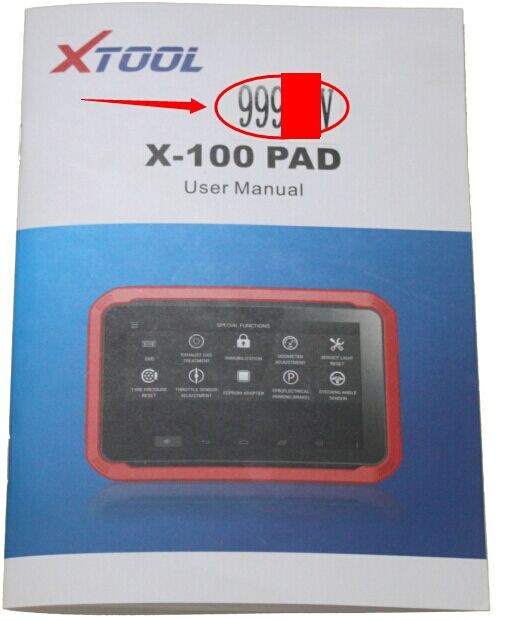
1.The required “Activation Code” is printed in the user manual shown as following red -circled number.

x100-pad-active-03

2.Take down your password, not lost it, otherwise it will take you some trouble.

Xtool X100 PAD Main Interface

Tap on X-100 PAD application icon, the main interface and sub-menus will be shown as below.

xtool-x-100-pad-tablet-key-programmer-4

Diagnostics: open the X-100 PAD diagnostic application. It can read diagnostic information, view live data, perform actuation tests and special functions etc.

Diagnostic Report: Users can view all the diagnostic reports and diagnostic data generated in the diagnostic process.

Setting: Users can access the language setting and other system related settings.

Xtool Cloud: online communication Platform for X-100 PAD users.

Update: after connected to the internet, you can download the latest diagnostic software directly to the X-100 PAD.

Remote Diagnosis: Users get remote assistance from Xtool Technical Assistance Center.

Instruction on LAUNCH X431 V Client uninstall and reinstall


launch-x431-v-new-1

How to uninstall and reinstall LAUNCH X431 V Client

Step 1: Uninstall X431 V client

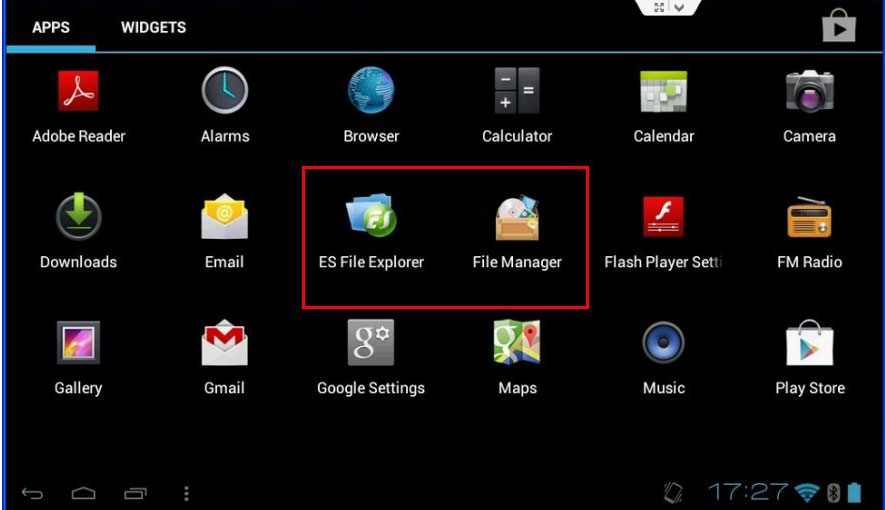
Step 2: Delete “cnlaunch “ from these 2 files: “ES File Explorer” and “File Manager” as following picture shows:

x431v-2
Step3: Browse www.dbscar.com to download the newest version for X431 V client, and then install it. Important Note: you need to find X431 V under “Product Introduction”, and install X431 V Android version.

Step4: Open X431 V Client that has been installed, log into your CC account

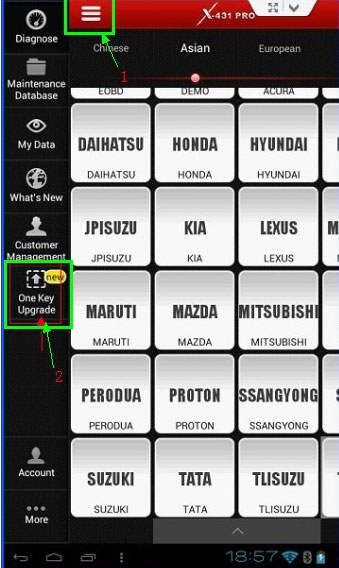
Step5: Update software by following the below picture instruction.

x431v-3

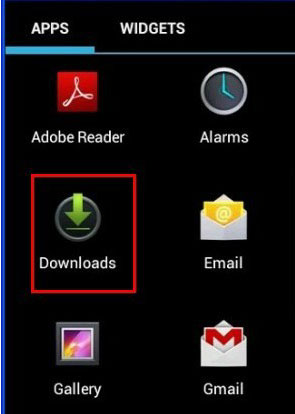
Important Note: the X431 V you downloaded will be saved in “downloads” shown as follows.

x431v-4