How to Fix Foxflash “Excute Download with DFBTech_Update” Error

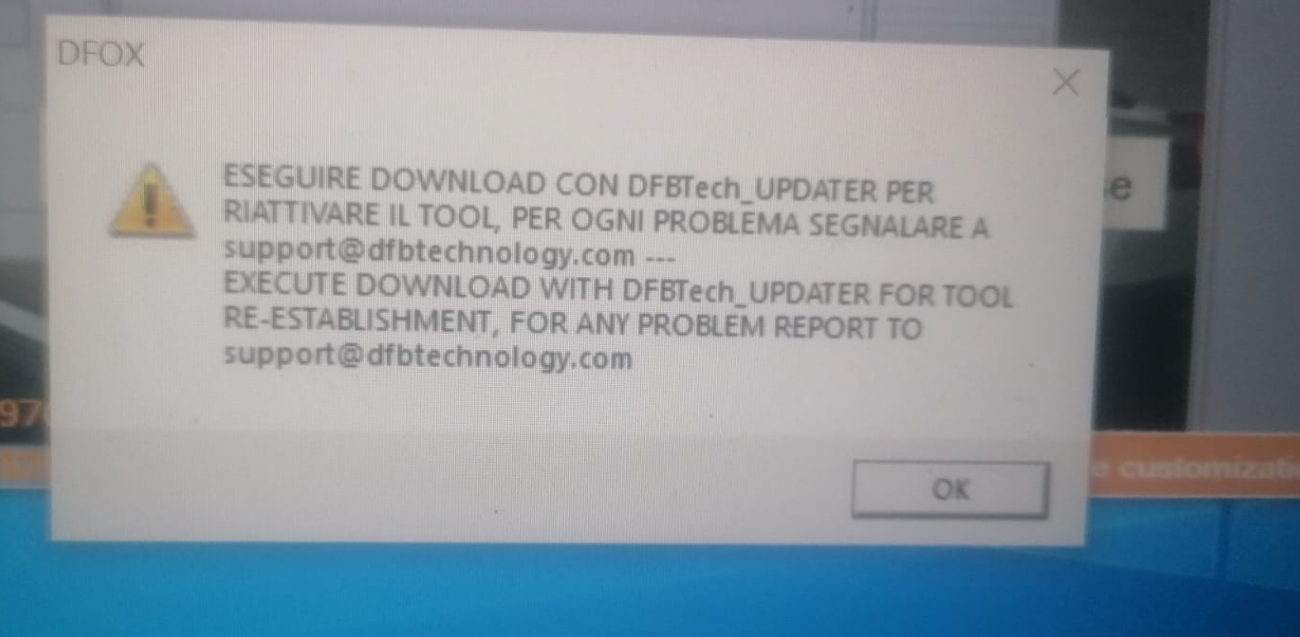
Some customers reported that when they try to download foxflash software to a new computer but showed this message:
Error”Excute Download with DFBTech_Update”

foxflash error

Solution:
Ensure
1. Defender off

2.Data/time sync off(when you click Activate your time should go to 00:00 or 12:00)

3.Have a good internet connection

4.Ensure Foxflash is connected with both USB and 12 V power

5.Check windows device manager that your foxflash is showing as installed.

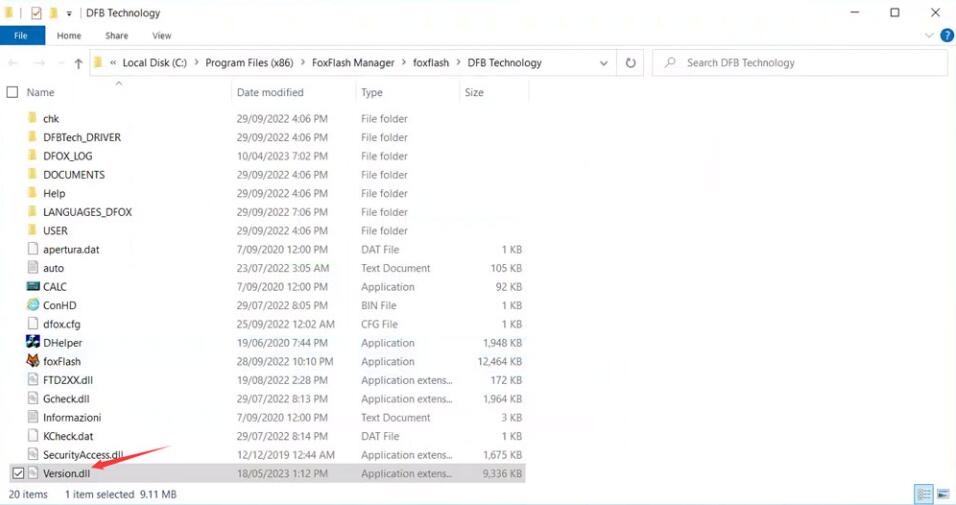
6.Check if there is “version.dll” file in dfb folder. Make sure anti-virus software do not kill the file.

foxflash error

if the file was killed, download version.dll file then paste it to following folder(MUST DISABLE Anti-Virus Programms)
/Program Files(X86)/Foxflash Manager/Foxflash/DFB Technology

if did all above but without luck, please do a full re-install.

Delete all existing dfb files,download all gain, something blocks the software.

Disconnect the interface and click download, then restart Foxflash manager and the tool’s software.

How to understand the logic ECU manufacturers use

How to understand the logic ECU manufacturers use

ecu

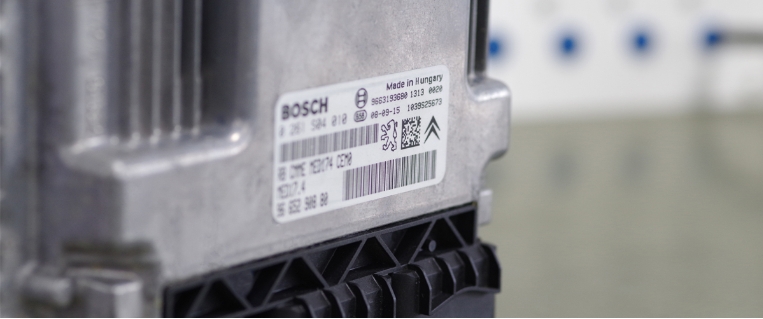
If you are new to the field of engine reprogramming, you have surely quickly had to familiarize yourself with the specific terms of this industry. To assess the feasibility and complexity of modifying an engine, it is essential to refer to the engine control unit (ECU). However, there is a wide variety of ECUs, which can make navigation in this field quite complex. Fortunately, some equipment manufacturers, such as Bosch, have taken a logical approach to designating these ECUs, which can serve as a reference point. Here are some tips to help you navigate this diversity of ECUs:

MED17.1.1

M: Motronic – This is the name given to the electronic control unit by Bosch.

E: Electronic throttle control system (not cable-operated).

D: Direct injection system.

17: Bosch version of the ECU.

1.1: ECU type (reserved for VAG here).

MG1CS201

M: Motronic – This is the name given to the electronic control unit by Bosch.

G: Gasoline – This is a gasoline engine.

1: Bosch version of the ECU.

C: Common rail – This is a common rail injection system.

S: Solenoid – These are solenoid injectors.

201: ECU type (reserved for BMW here).

MD1CP002

M: Motronic – This is the name given to the electronic control unit by Bosch.

D: Diesel – This is a diesel engine.

1: Bosch version of the ECU.

C: Common rail – This is a common rail injection system.

P: Piezo – These are piezo-electric injectors.

002: ECU type (reserved for Mercedes here).

how to check vvdi mini key tool id48 96bit token ??

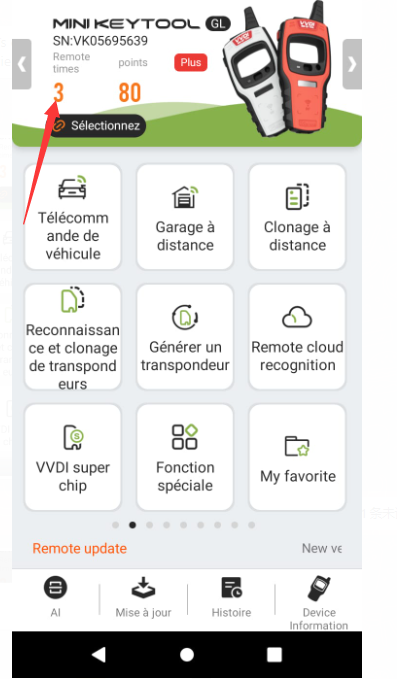
Recently one of my customer who bought 3 tokens for his Xhorse VVDI Mini Key Tool

After add tokens for his machine, customer come to tell there is no tokens in machine.

And he showed the screen of Xhorse APP  

vvdi-mini-key-tool

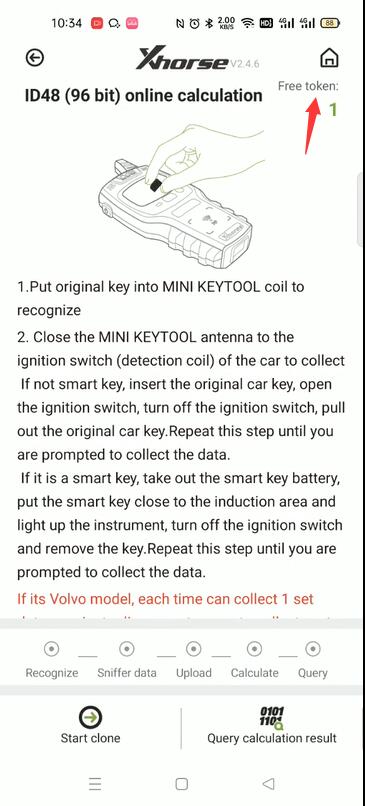
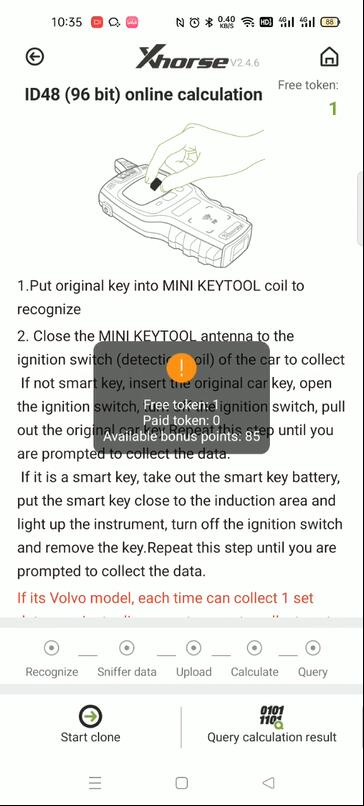
But actually,there is a delay in xhorse APP, customer should enter ID48 96Bit funtion to check it

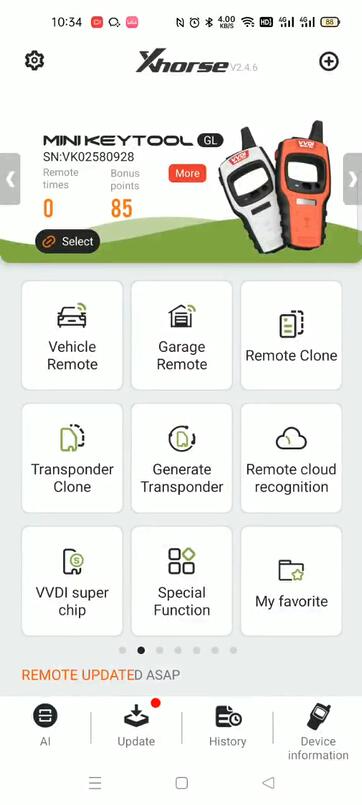
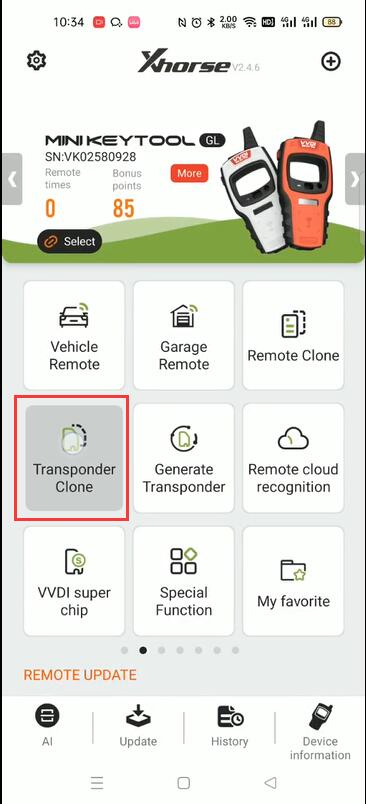
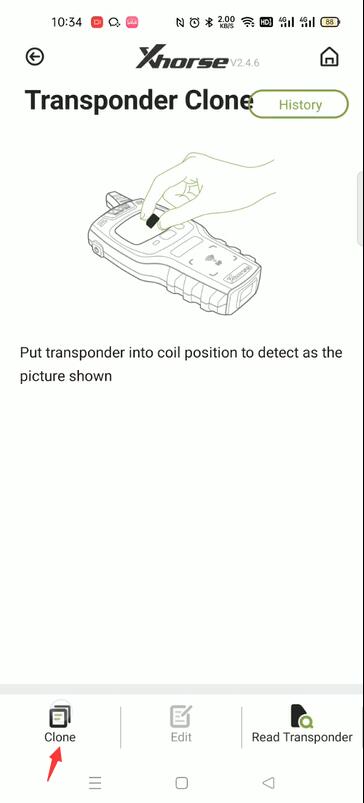
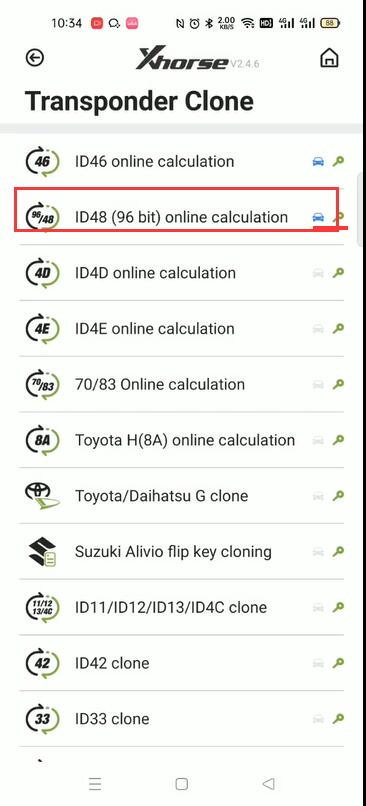
Here is the steps on checking Xhorse ID48 96Bit tokens

vvdi mini key tool

xhorse vvdi mini key tool

xhorse vvdi mini key tool

xhorse vvdi mini key tool

xhorse vvdi mini key tool

xhorse vvdi mini key tool


Operation Guide for Formatting IM508 Stuck on Startup Page !!

Operation Guide for Formatting Autel IM508 Stuck on Startup Page

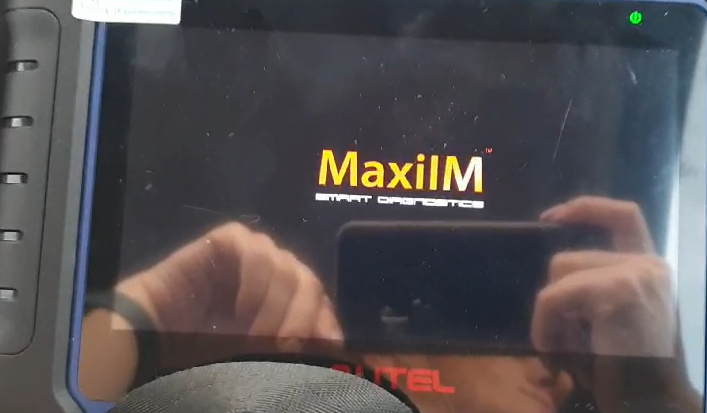
One of our customer who own an Autel MaxiIM IM508 machine, when he use IM508 to do key programming for his vehicle, he got a problem. The machine stuck on the startup page and can not continue anymore.

im508 stuck on start page

But how to solve this problem when using machine ?

Here we share steps which provided by Autel factory engineer

I. Set up Computer Circumstances
1. Install RK driver
Open the folder “RK_DriverAssitant”, run Driverintall.exe, following the on-screen prompts to install the driver.

2. Install Google-USB driver
Some computers may need to install this driver.

Open the folder “Google-USB_driver”; If your computer OS is 32-bit, run DPInst32.exe and if your computer OS is 64-bit, run DPInst64.exe.

If you have already installed this driver before, please go directly to next step.

II. Reflash the Device
!!Attention:This procedure will format your device and will delete the data on your device.

3. Run Reflasing Tool
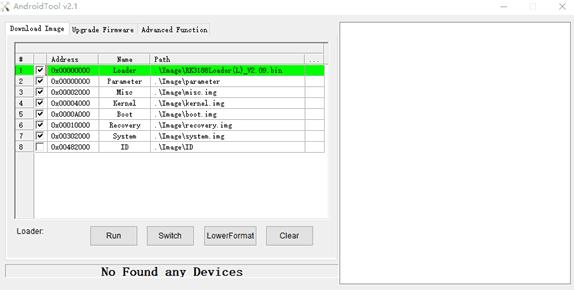
Open the folder “AndroidTool_Release_v2.1”, run AndroidTool.exe, the reflashing window will be displayed as shown in the figure below.

im508 format machine

4. Turn Your Device into Reflashing Mode
Connect your device to computer with USB cable and wait until the computer recognizes the device.

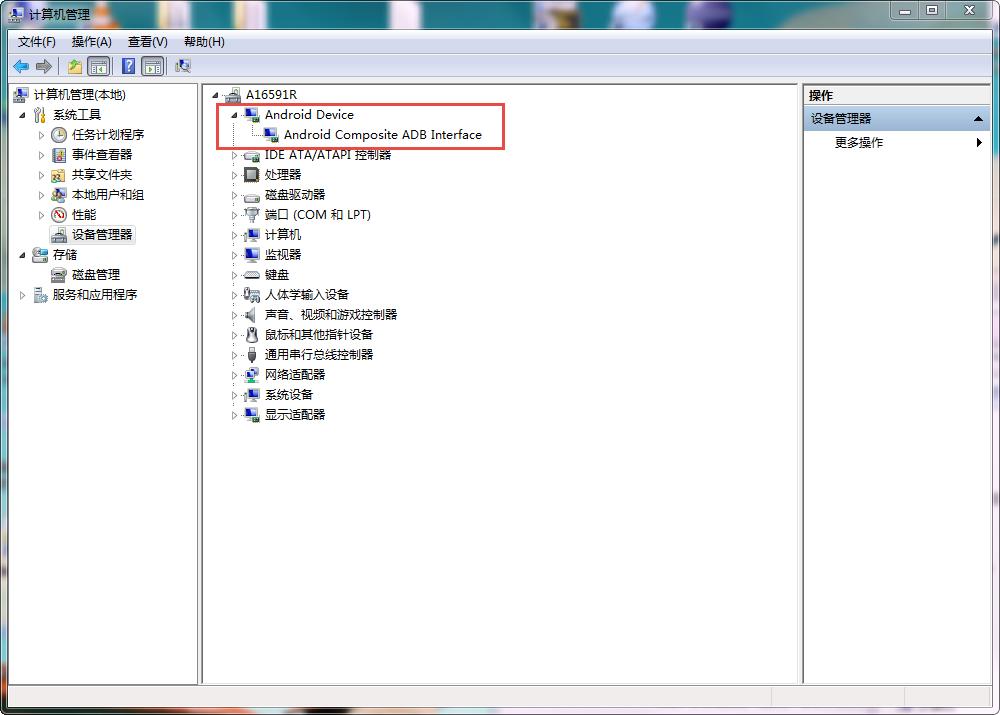
You can check the connection status via Device Manager on your computer.
As it is shown in the red mark on the figure below, the device was already recognized by the computer.

im508 format machine 1

5. Ready to Reflash.
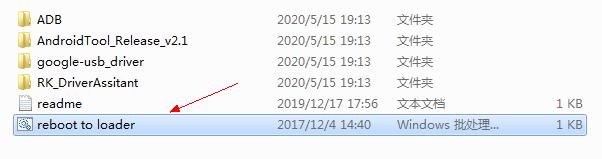
Double click on the script named “reboot to loader.bat”;

im508 format machine 2

If it is run successfully, there will be a prompt message “Found One LOADER Device” displayed on the reboot window (as shown in the figure below).
After you saw this message, click “Run” button to start and wait till rooting process completed.

im508 format machine 3

How to configure the online programming function for Launch X431 PAD VII/X431 Pro5

How to configure the online programming function for Launch X431 PAD VII/X431 Pro5

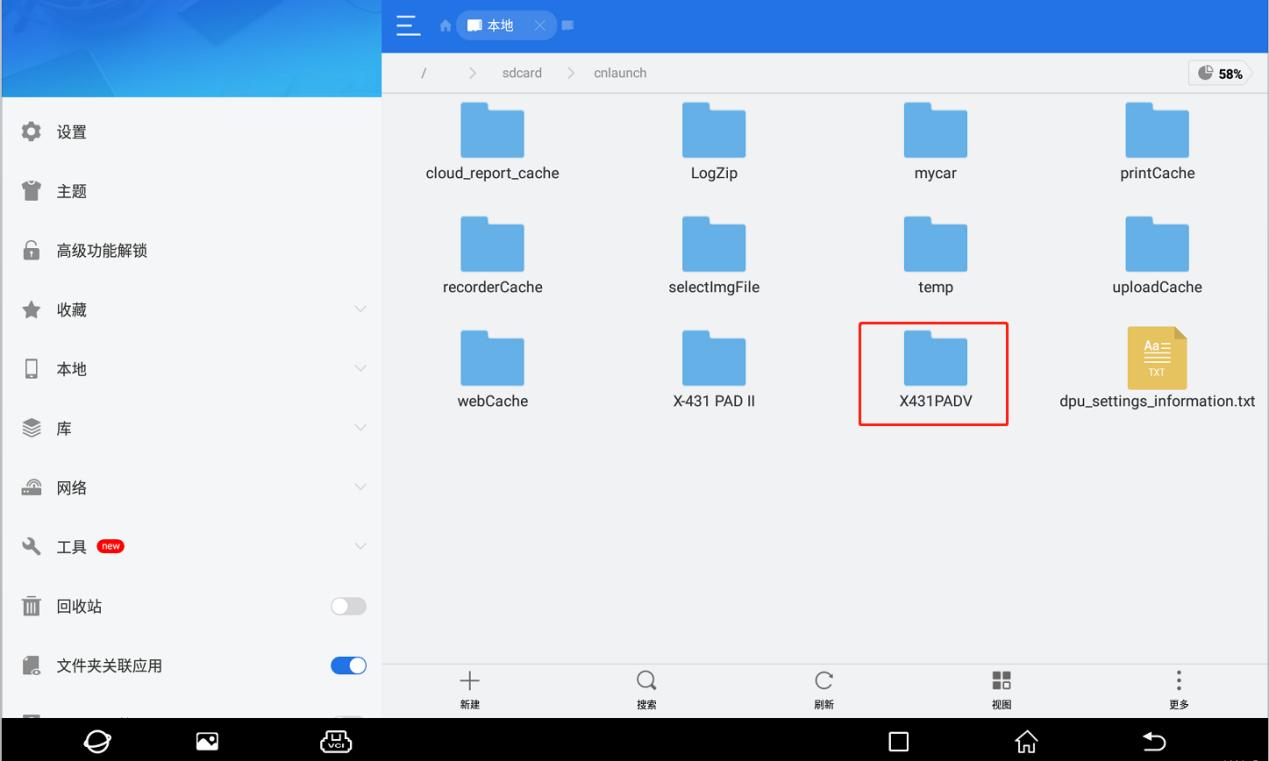
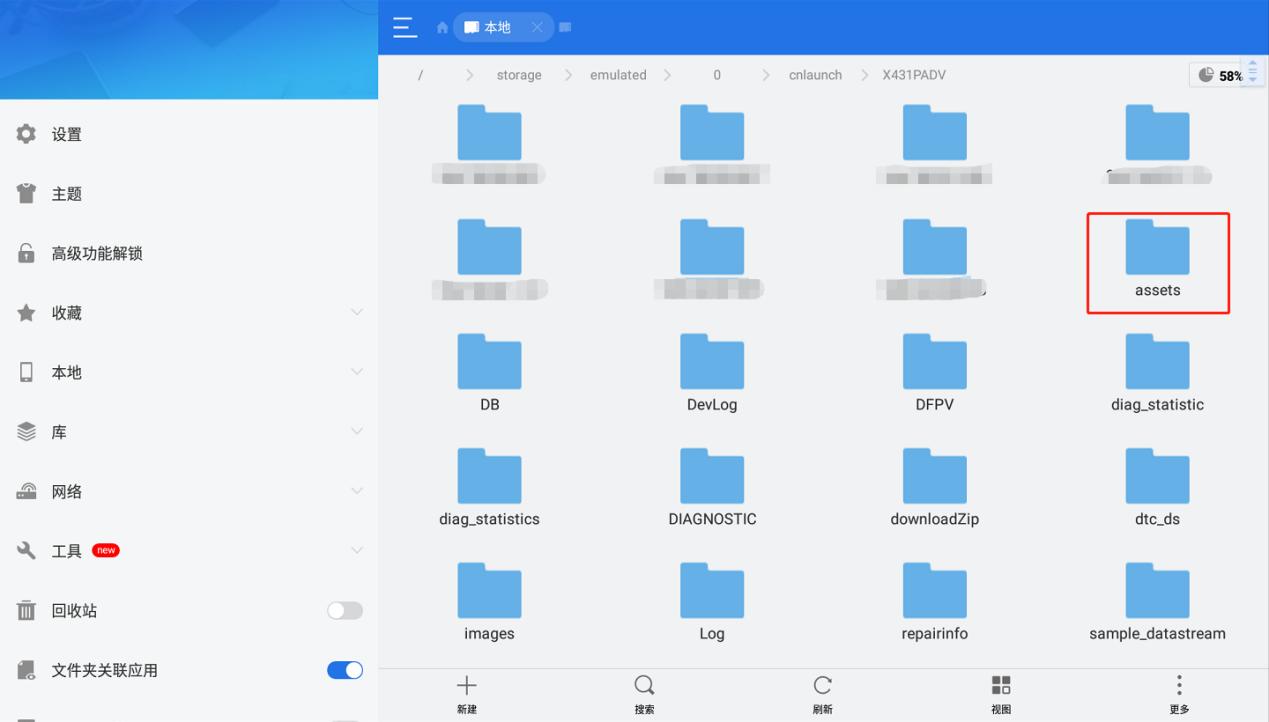
Firstly,Go to Other – Device – File Management – cnlaunch folder – X431PADV – assets directory and find the file named StdCfg.ini.

online-programming-configuration-1

online-programming-configuration-2

online-programming-configuration-3

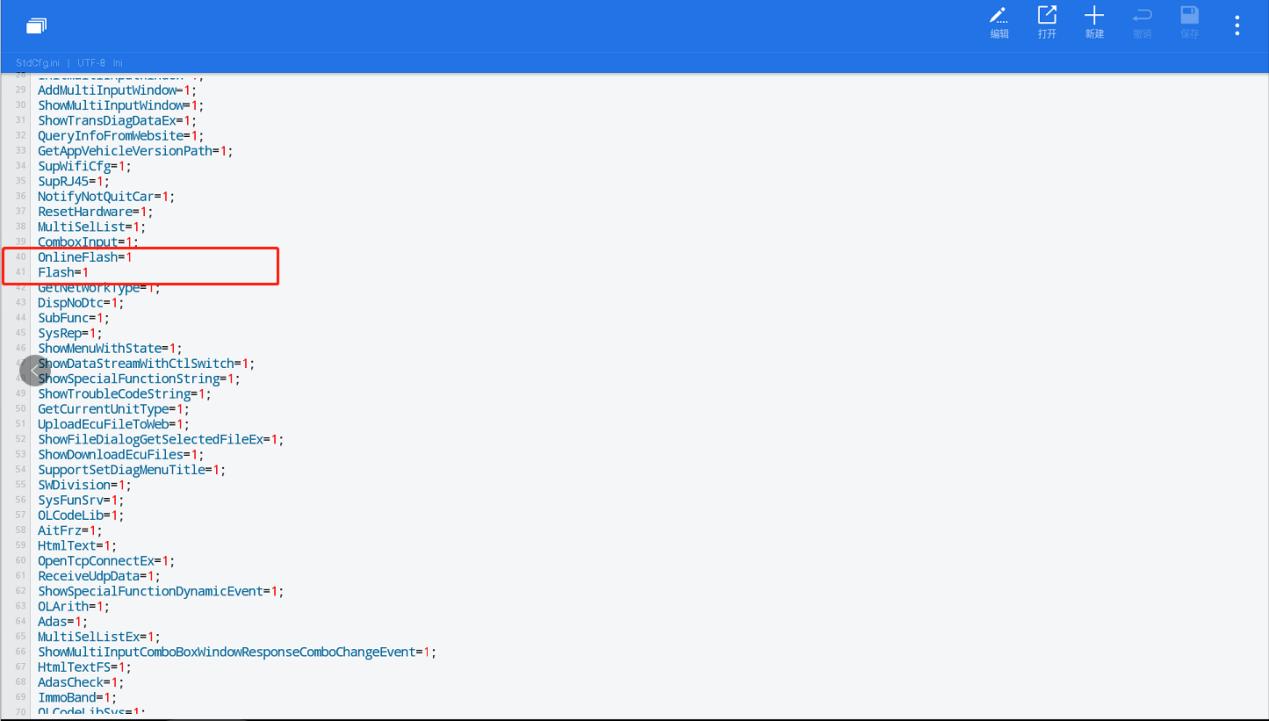
Open StdCfg.ini with a text editor, click the edit button on the upper right to put the file in editing mode, find the fields OnlineFlash and Flash, the default value is 0, which means the diagnostic software does not support online programming, click the corresponding field, and change the value to 1, then save. After successful saving, the corresponding value will change to 1, as circled in the figure below, indicating that the diagnostic software can support online programming function.

online-programming-configuration-4

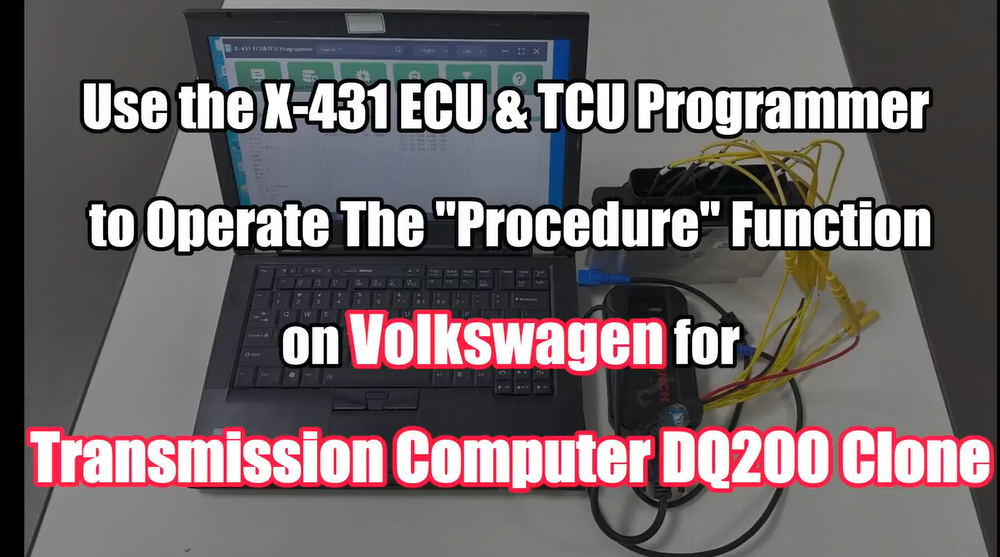
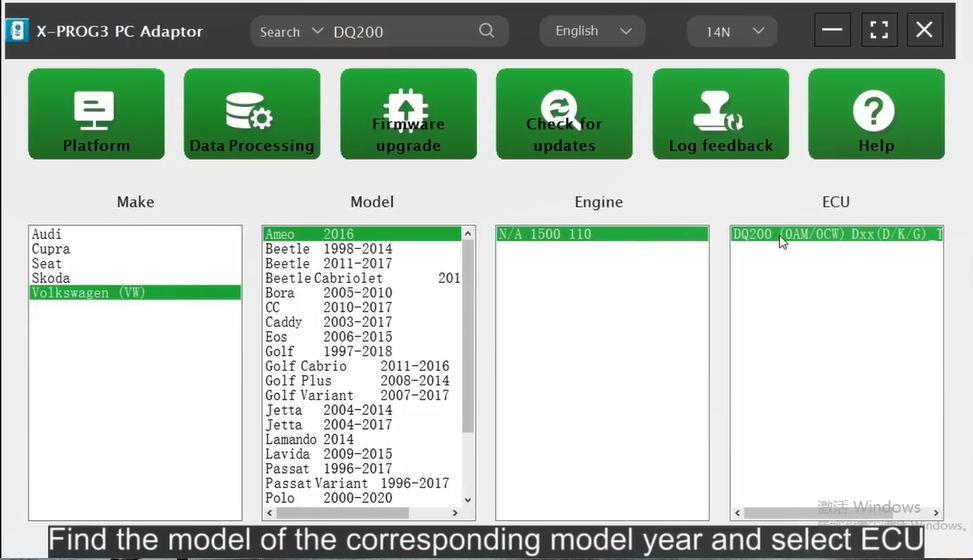
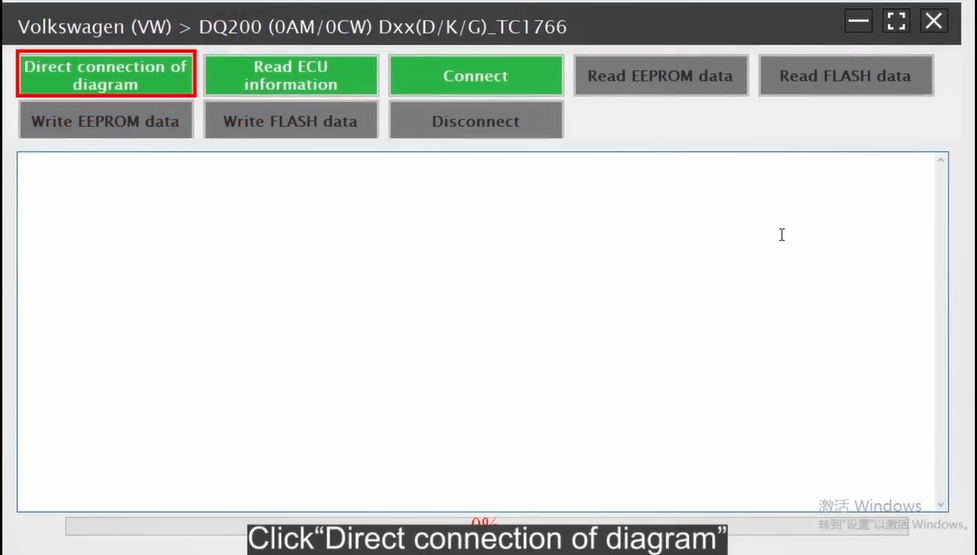
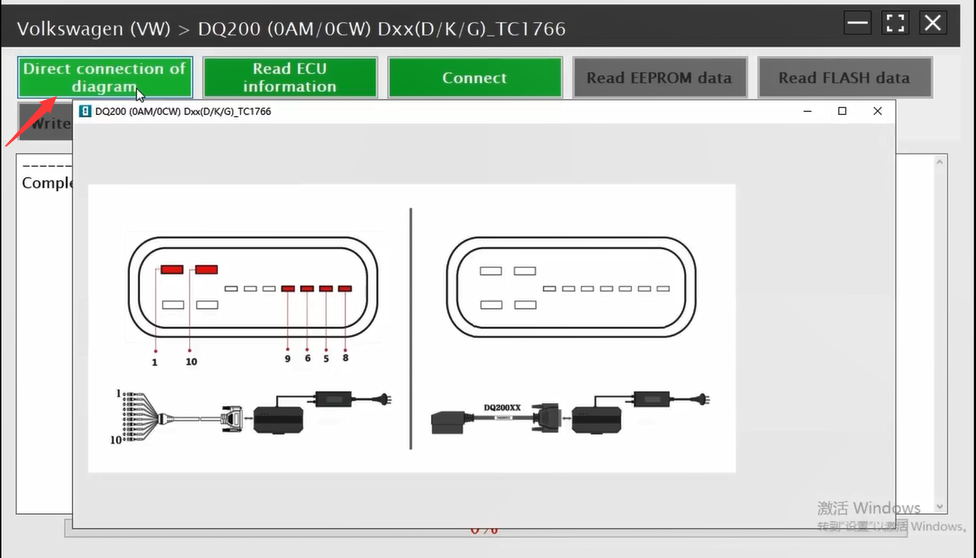
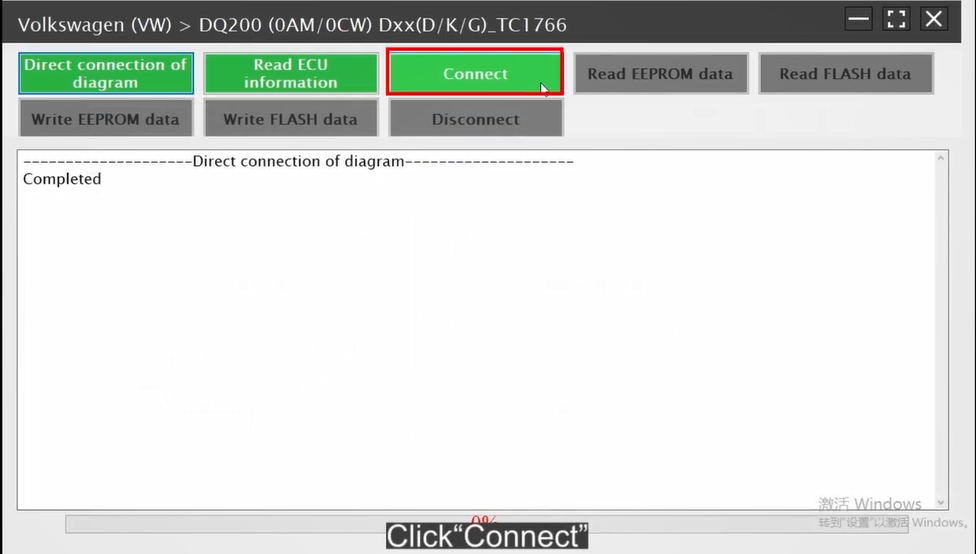
Use X431 ECU&TCU Programmer to Operate The” Procedure” Function on Volkswagen for Transmission Computer DQ200 Clone

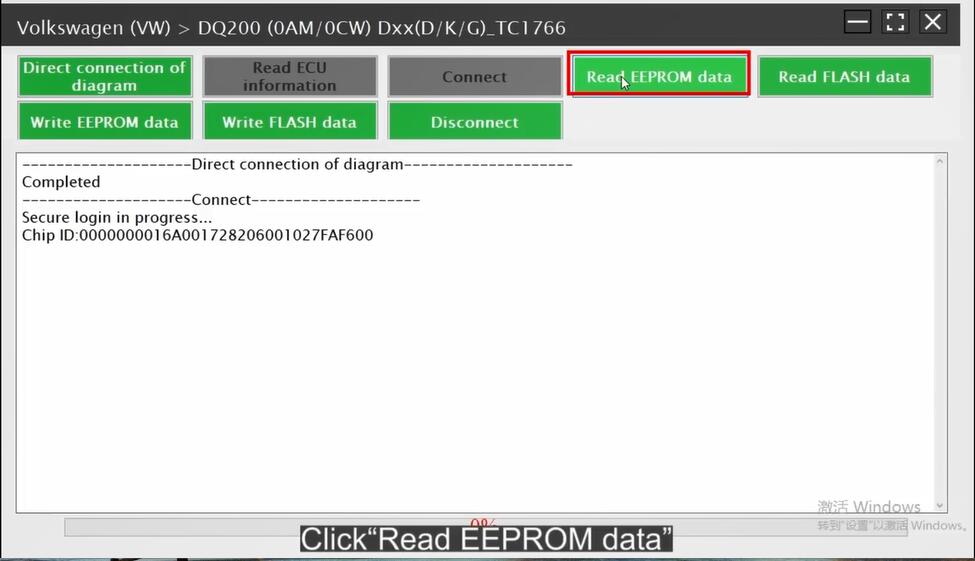
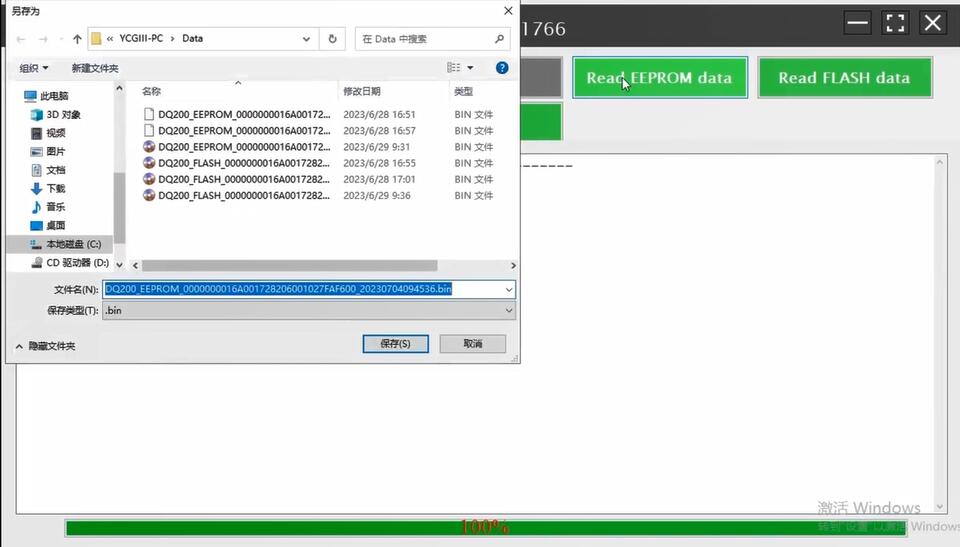
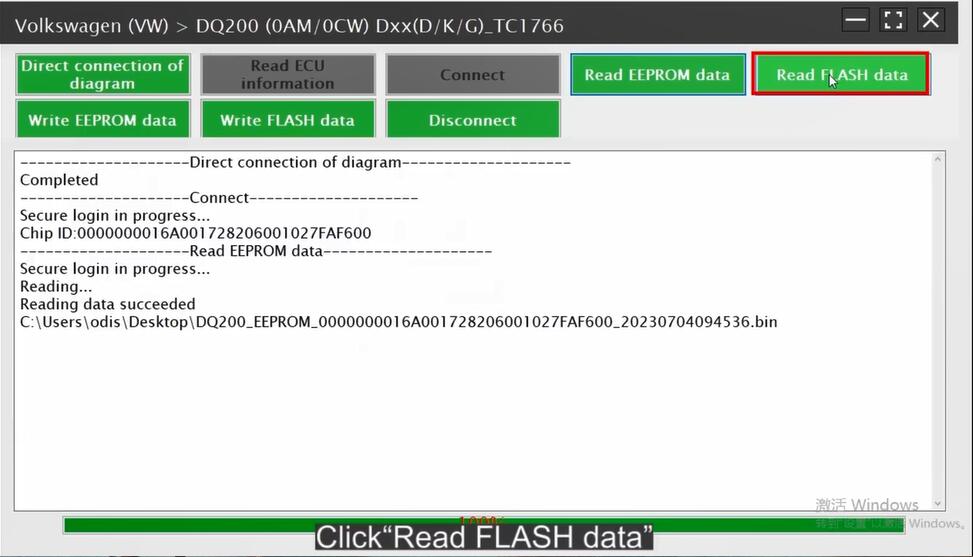
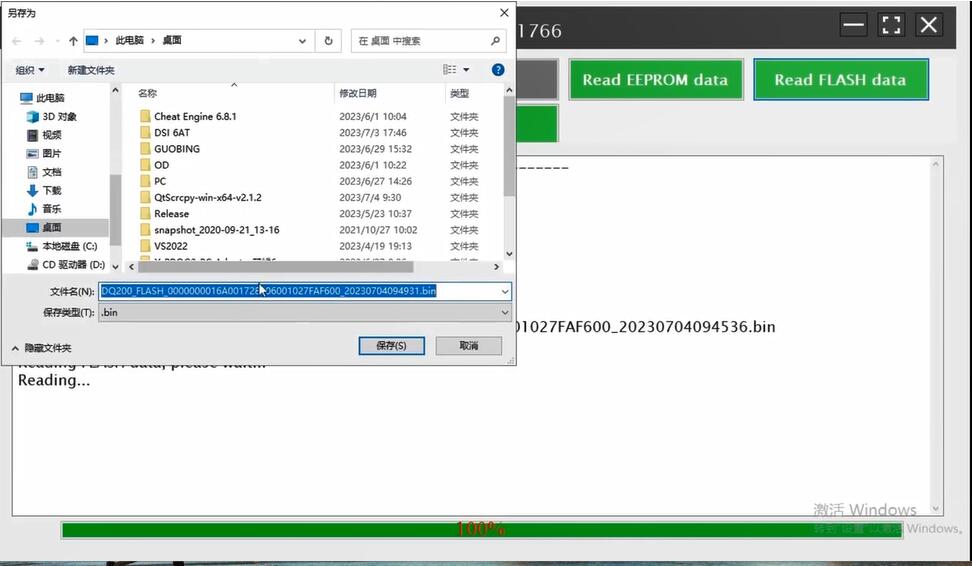
Use X431 ECU&TCU Programmer to Operate The” Procedure” Function on Volkswagen for Transmission Computer DQ200 Clone

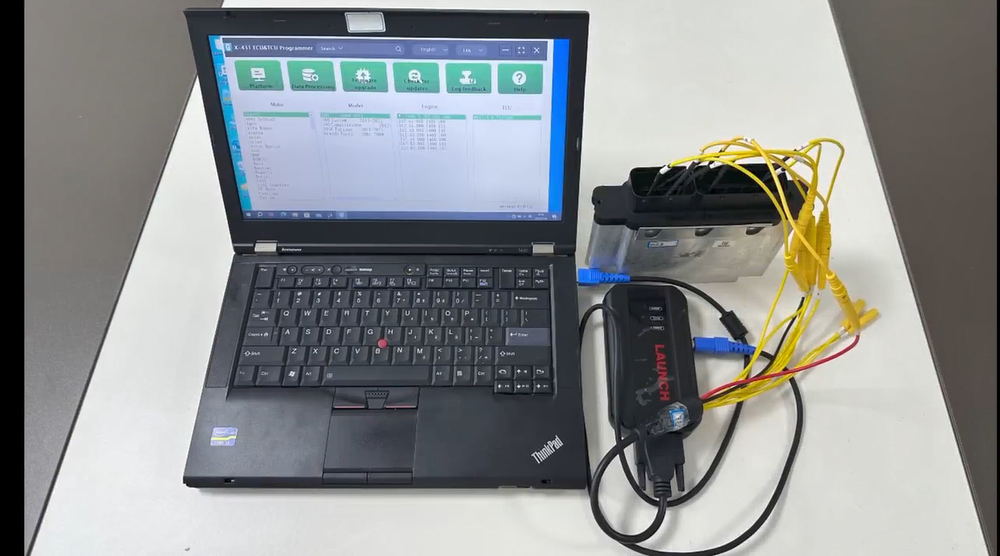
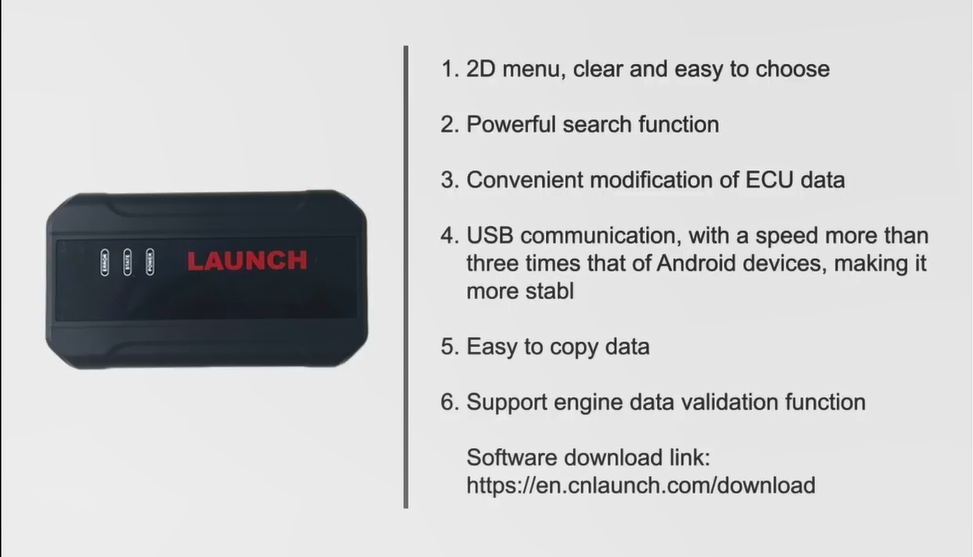
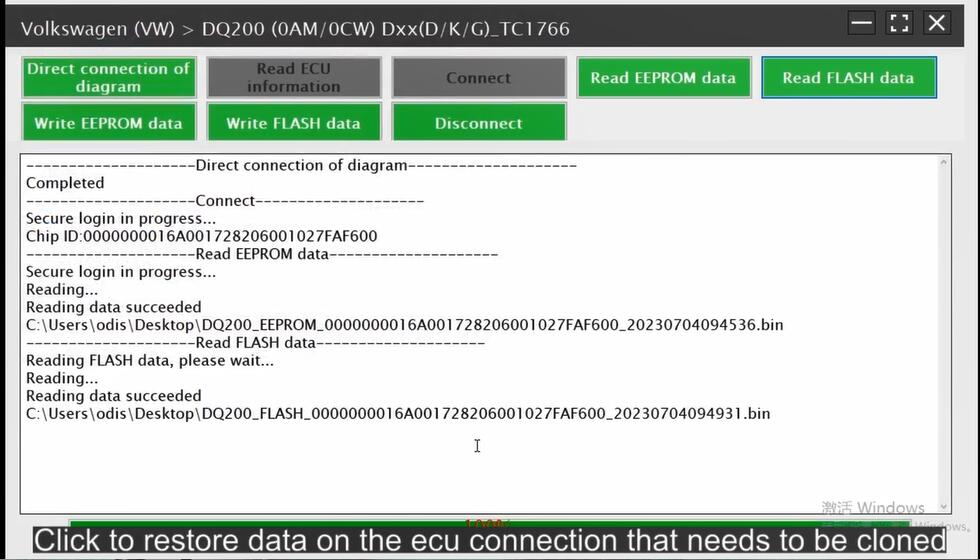
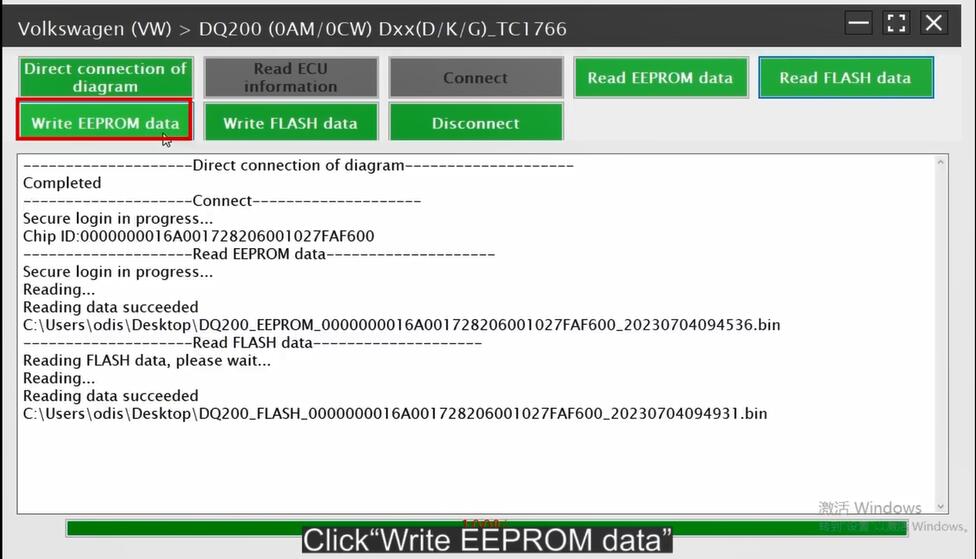
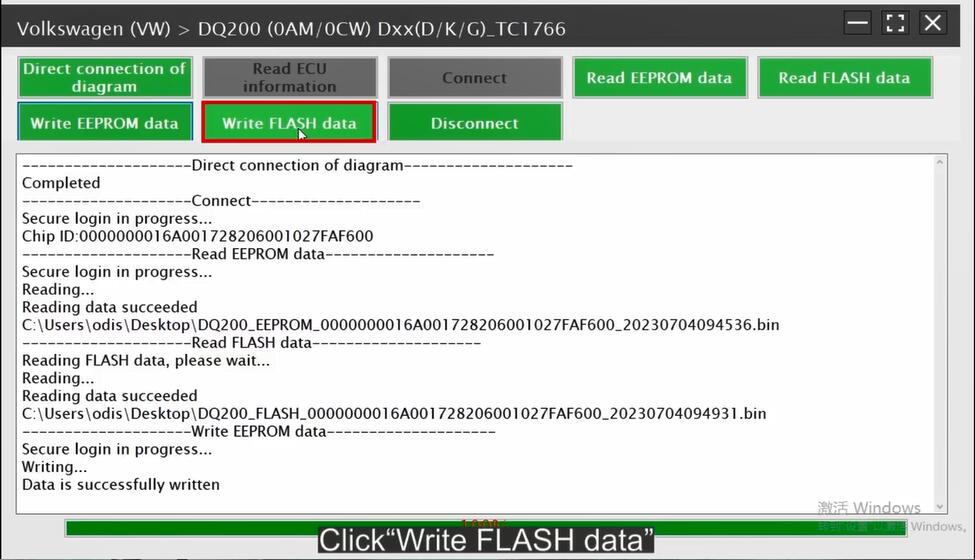
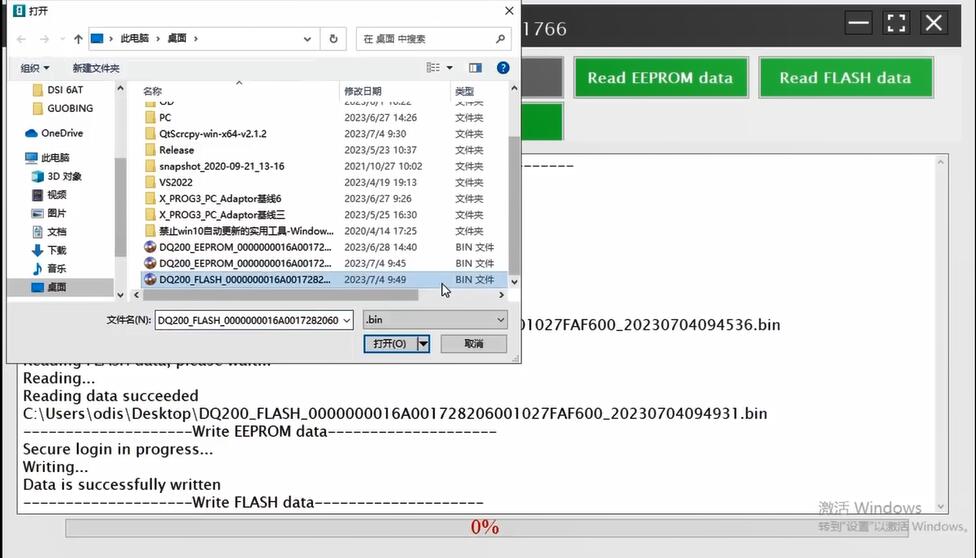
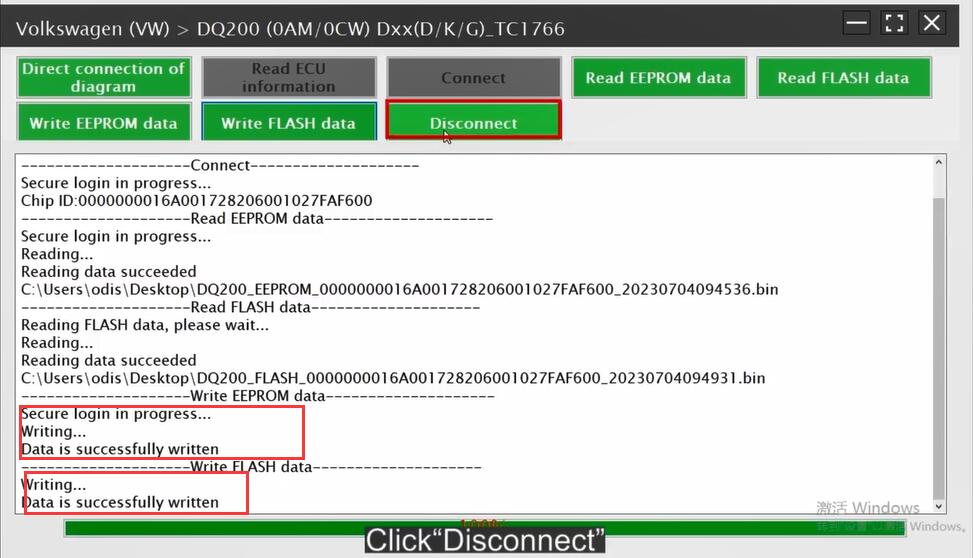
Launch X-431 ECU & TCU Programmer supports ECUs data reading & writing quickly, including reading the chip ID and backing up the EEPROM data, backing up the FLASH data and restoring EEPROM/FLASH data. There are two methods to read various vehicle brand ECUs info. The X-431 ECU & TCU Programmer also supports Data Processing, anti-theft shutdown and file verification.

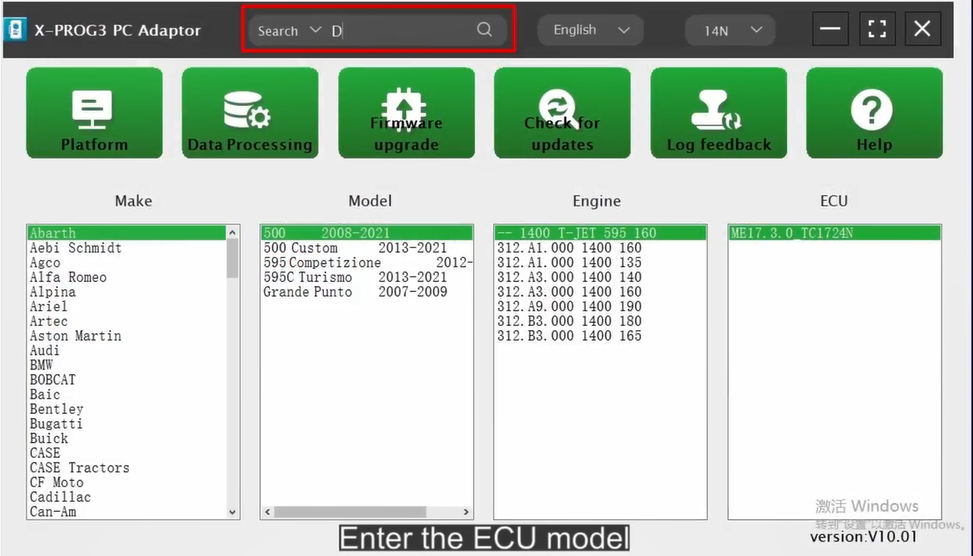
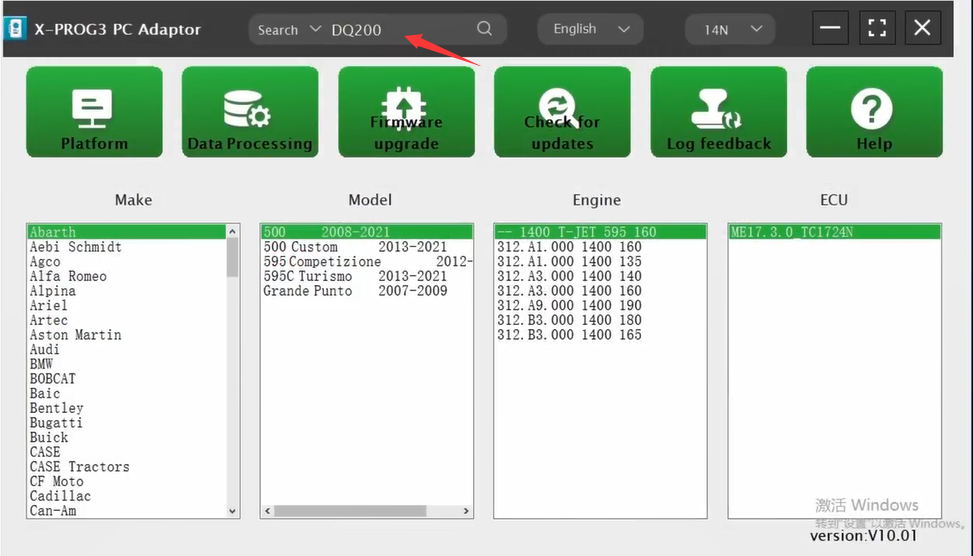
But how to use Launch X431 ECU TCU Programmer for Volkswagen Transmission DQ200 ?

VW for DQ200 TCU Cloning

VW for DQ200 TCU Cloning

VW for DQ200 TCU Cloning

VW for DQ200 TCU Cloning

VW for DQ200 TCU Cloning

VW for DQ200 TCU Cloning

VW for DQ200 TCU Cloning

VW for DQ200 TCU Cloning

VW for DQ200 TCU Cloning

VW for DQ200 TCU Cloning

VW for DQ200 TCU Cloning

VW for DQ200 TCU Cloning

VW for DQ200 TCU Cloning

VW for DQ200 TCU Cloning

VW for DQ200 TCU Cloning

VW for DQ200 TCU Cloning

VW for DQ200 TCU Cloning

VW for DQ200 TCU Cloning

for more informations about Launch X431 ECU TCU programmer, please visit following link

https://www.carobd.de/wholesale/launch-x431-ecu-tcu-programmer.html


This entry was posted on August 24, 2023, in Launch X431.

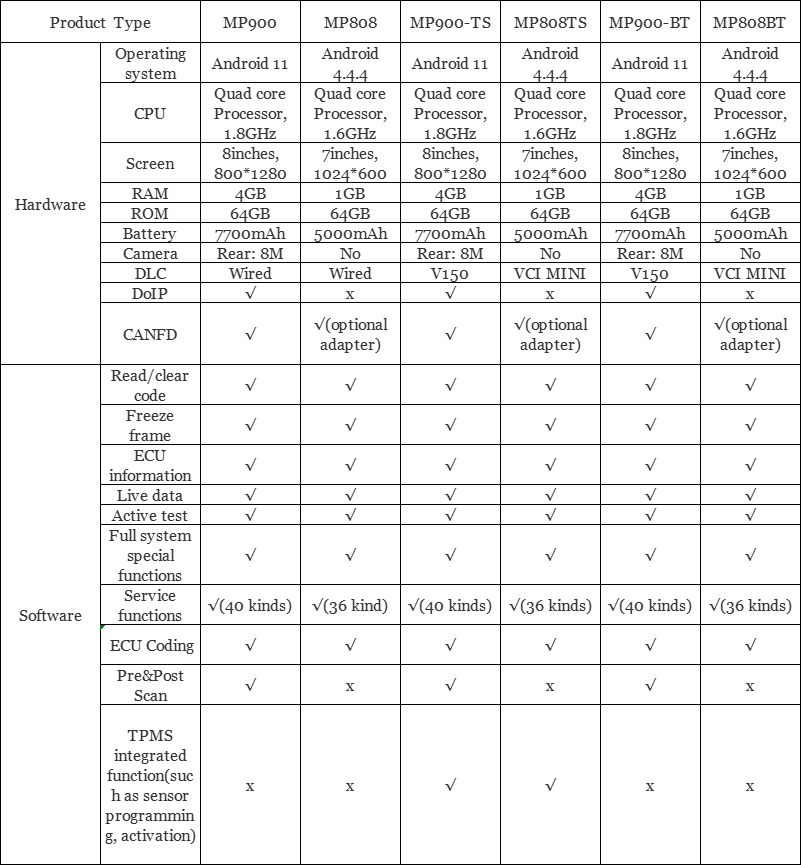
Autel MaxiPro MP900 VS MP808, MP900BT VS MP808BT, MP900TS VS MP808TS

Autel MaxiPro MP900 VS MP808, MP900BT VS MP808BT, MP900TS VS MP808TS

In this article, we will compare six of the most popular OBDII Diagnostic Scanners from Autel: Autel MaxiPRO MP900, Autel MaxiPro MP808, Autel MaxiPRO MP900TS, Autel MaxiPro MP808TS, Autel MaxiPRO MP900BT, Autel MaxiPro MP808BT. Many people may get confused when they need to make a decision among the six Diagnostic Scanners. This does not come out with no reason. They have similar features and functions. Read this blog and you will learn the difference among these four diagnostic scan tool.

Comparison Chart

comparison chart

for more informations,please visist

https://www.carobd.de/search/?q=MP900&DirID=

How to add smart keys to Volvo XC40 2018- 2021 with Launch X431 IMMO Elite/IMMO Plus?

To add smart keys to Volvo XC40 2018-2021 using Launch X431 IMMO Elite/IMMO Plus, you can follow the simple steps outlined in the “IMMO Prog” function. The entire process takes approximately 3 minutes.

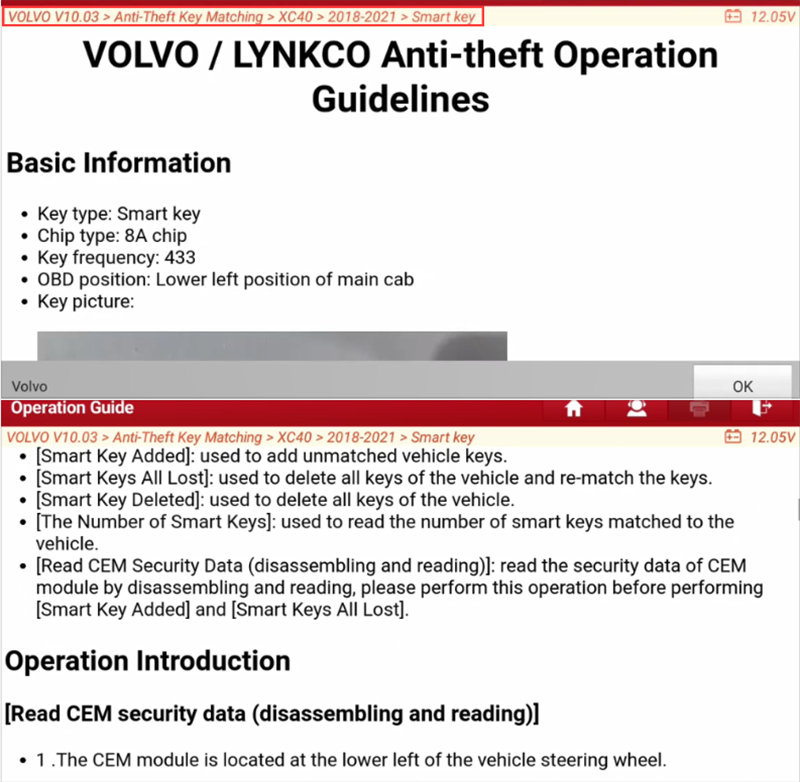
First, select the Volvo option in the menu, and then choose the newest version V10.03. From there, navigate to the Anti-Theft Key Matching section and select XC40 as the specific model for key matching. Make sure you choose the correct year range, which is 2018-2021.

Before proceeding, it is recommended to check the Volvo/Lynkco anti-theft operation guide provided by Launch X431 IMMO Elite/IMMO Plus. You will find an operation introduction and a wiring diagram that you can refer to throughout the process.
How-to-add-smart-keys-to-Volvo-XC40-2018-2021-with-Launch-X431-IMMO-Elite-1

To add a key, you will need to remove the CEM (Central Electronic Module) module from the vehicle. Follow the provided instructions carefully to ensure a proper and safe operation.
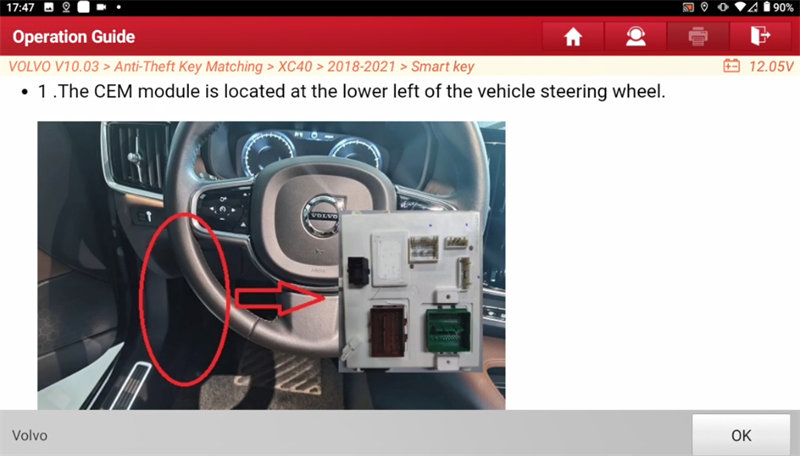
How-to-add-smart-keys-to-Volvo-XC40-2018-2021-with-Launch-X431-IMMO-Elite-2

After removing the CEM module, you need to connect the Launch X–Prog3 key programmer to the module using the MCU V1 and MCU cable V1, following the provided wiring diagram.
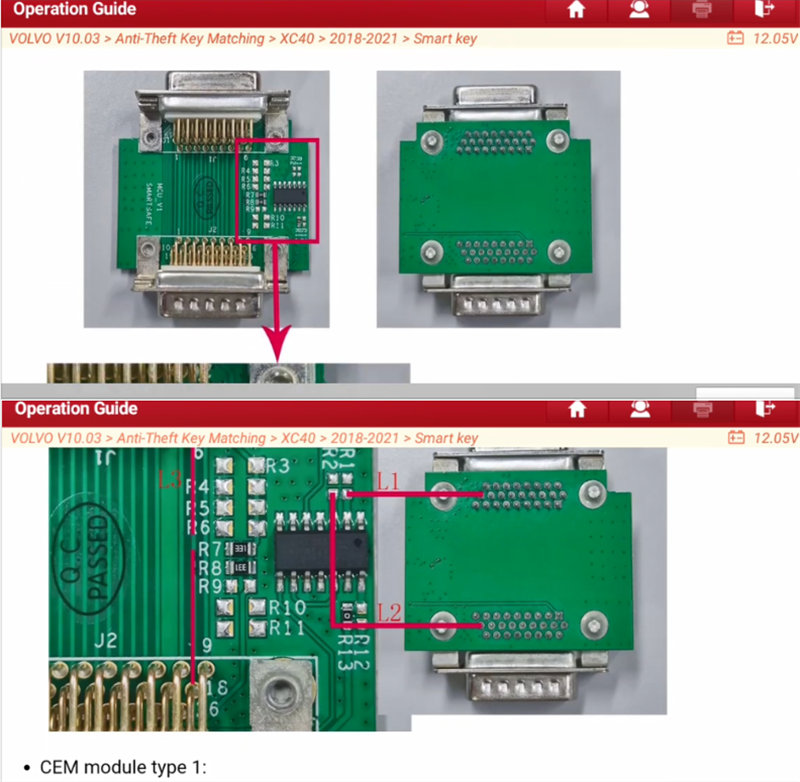
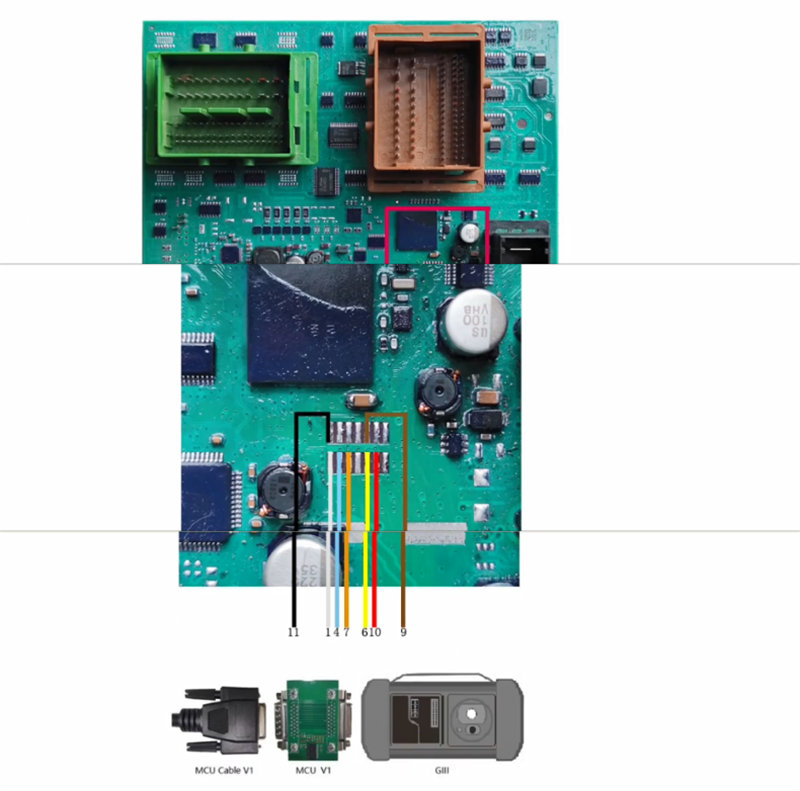
How-to-add-smart-keys-to-Volvo-XC40-2018-2021-with-Launch-X431-IMMO-Elite-3

How-to-add-smart-keys-to-Volvo-XC40-2018-2021-with-Launch-X431-IMMO-Elite-4

How-to-add-smart-keys-to-Volvo-XC40-2018-2021-with-Launch-X431-IMMO-Elite-5

Once the connection is established, you can start reading the CEM security data and adding the smart key. Select the “Read CEM security data (disassembling and reading)” option and pay attention to the prompts on the screen.
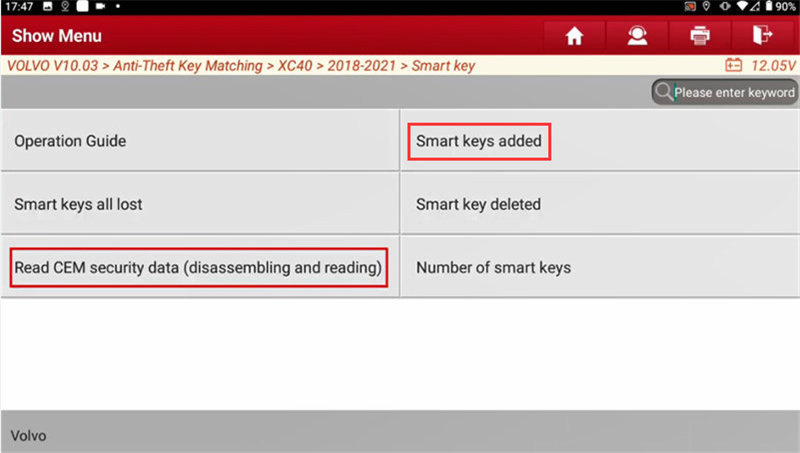
How-to-add-smart-keys-to-Volvo-XC40-2018-2021-with-Launch-X431-IMMO-Elite-6

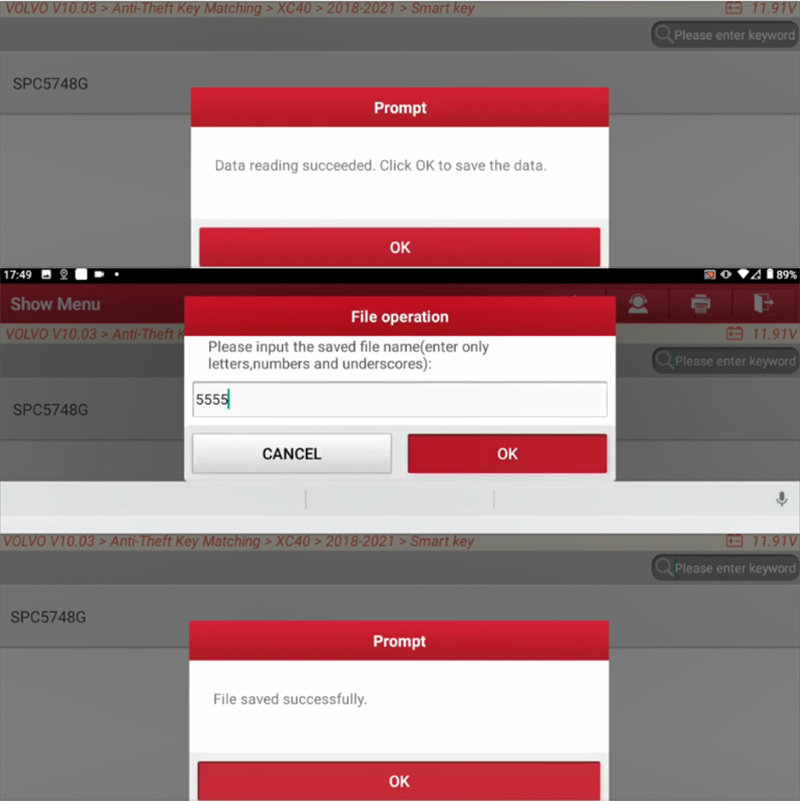
Make sure to save the vehicle immobilizer data after reading it successfully. This step is crucial for the key matching process.
How-to-add-smart-keys-to-Volvo-XC40-2018-2021-with-Launch-X431-IMMO-Elite-7

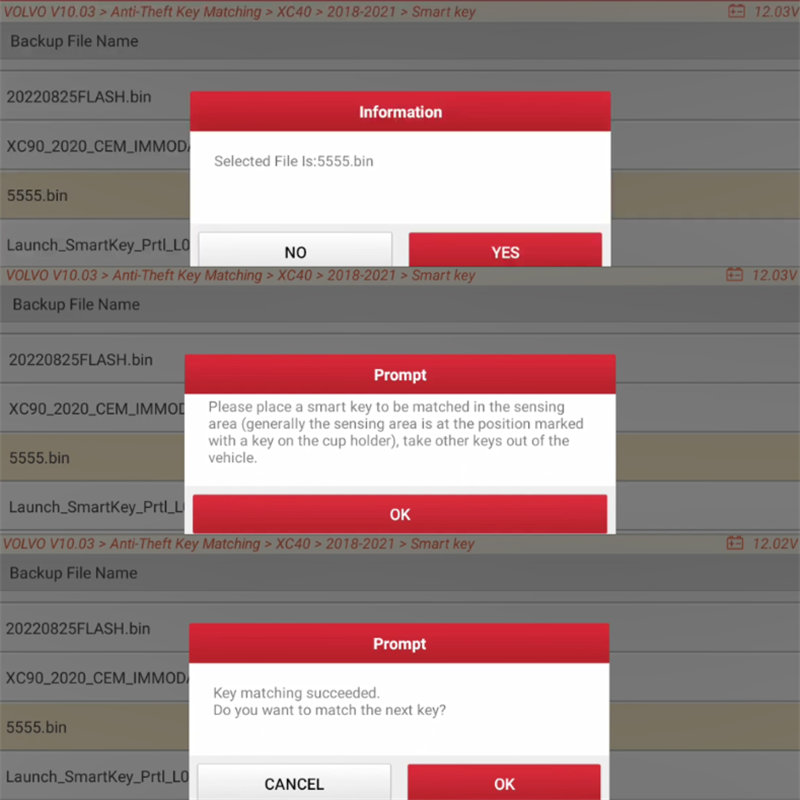
Next, select the “Smart keys added” option and follow the prompts on the screen. Turn the START knob to the right once and release it, and load the CEM security data that was just read.

To complete the key matching process, place the smart key to be matched in the designated sensing area, usually marked with a key symbol on the cup holder. Ensure that there are no other keys inside the vehicle during this step.

If everything is done correctly, you will receive a confirmation message stating that the key matching was successful.
How-to-add-smart-keys-to-Volvo-XC40-2018-2021-with-Launch-X431-IMMO-Elite-8

In addition to Volvo XC40, Launch X431 IMMO Plus/IMMO Elite is also capable of successfully matching anti-theft keys for Volvo S40 2004-2012.